User Guides: Skyline Dashboard
This section provides brief walkthroughs for common tasks in Tier5.
Accessing the Dashboard
To access the Skyline dashboard, you will need to log in.
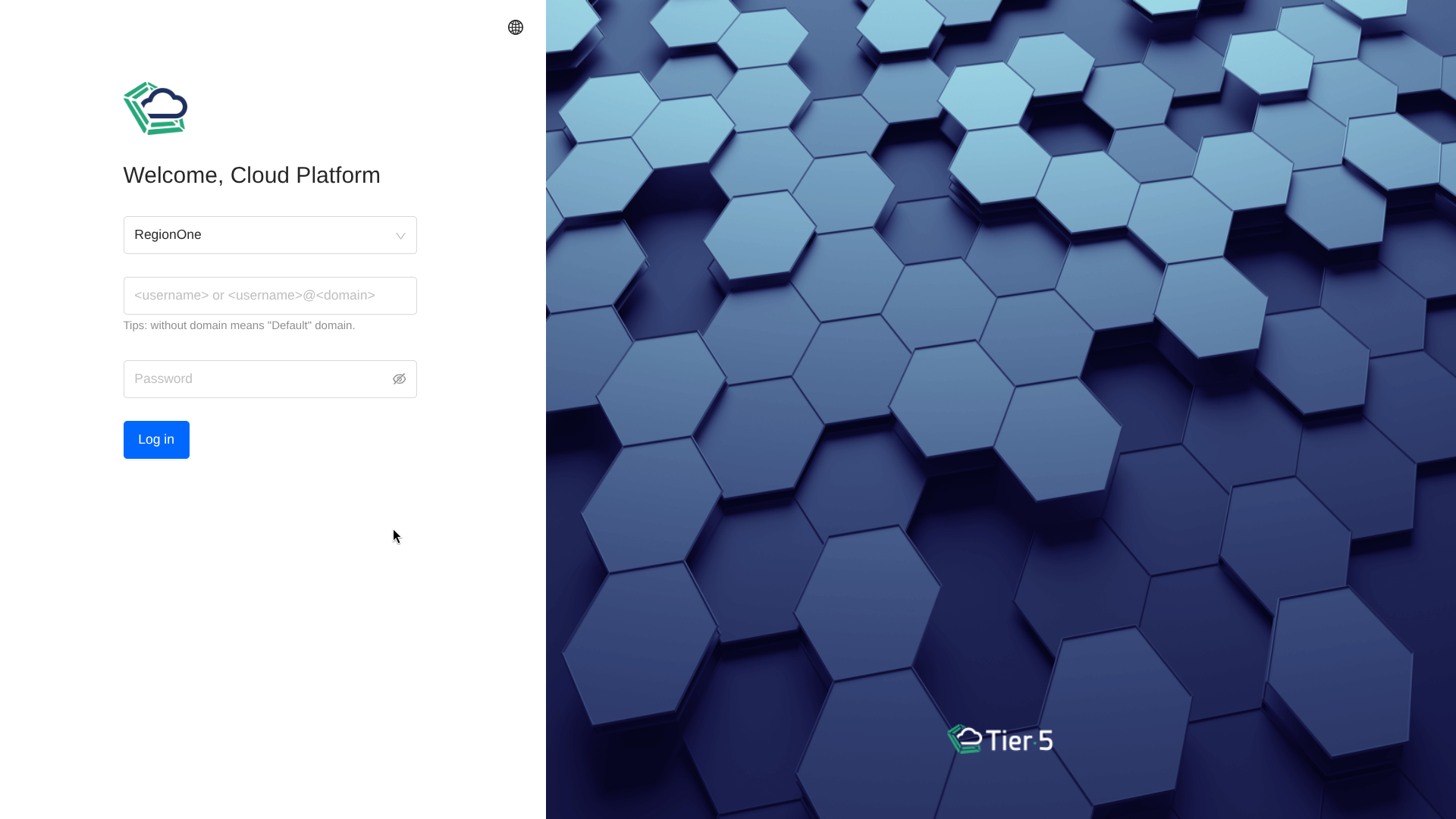
- Region: Select RegionOne. This is currently the only available region.
- Domain:
- default: Use this for private (hosted or on-premise) clouds.
- [Specific Domain]: If you are in a shared cloud environment, enter your assigned domain.
- Username / Password: Enter your provided credentials.
- Users outside the
defaultdomain must use the<username>@<domain>format.
- Users outside the
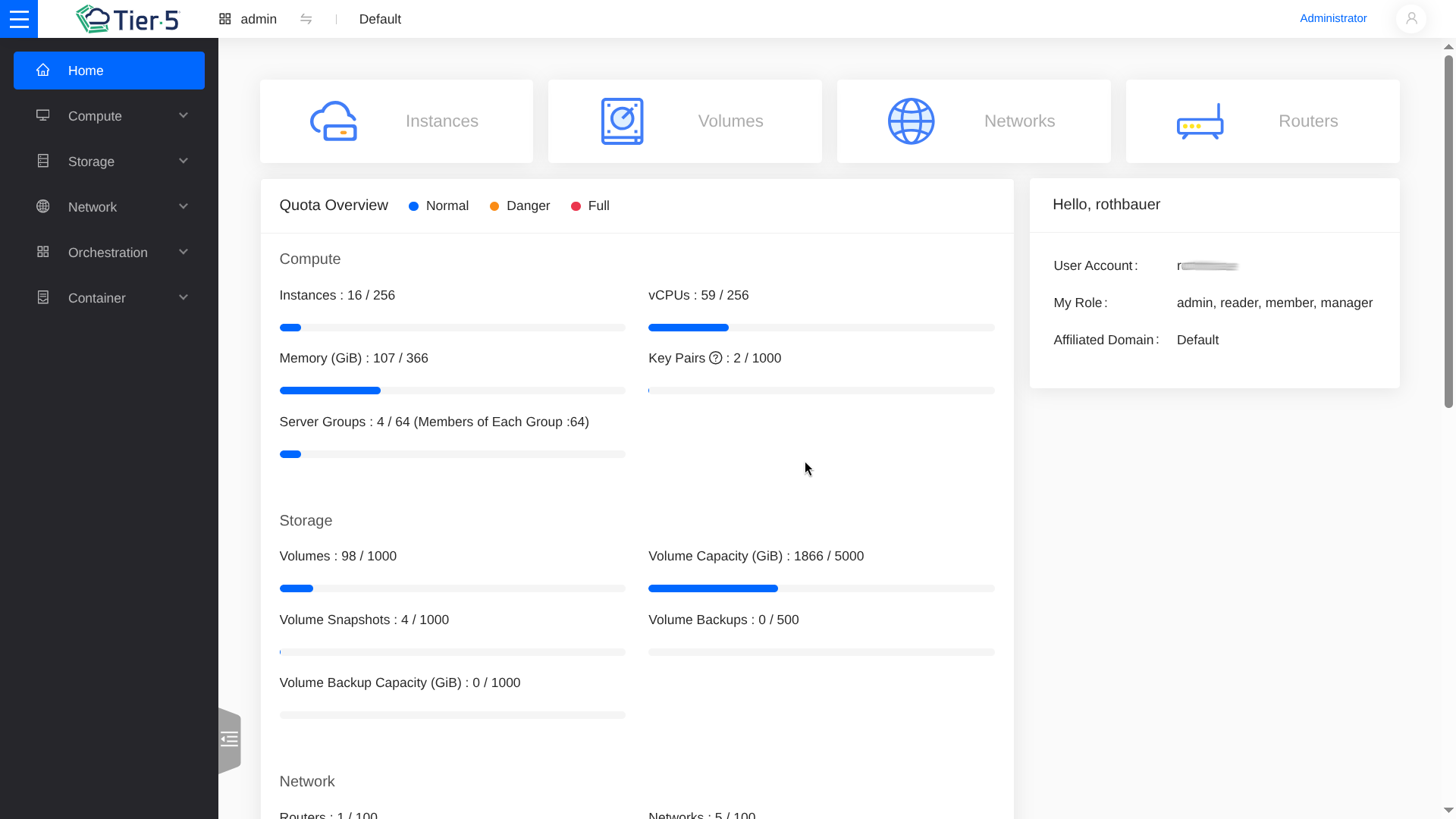
Dashboard Overview
Once logged in, you will see the main dashboard overview.
Managing Compute (Nova)
Launching an Instance
-
Navigate to Compute → Instances:
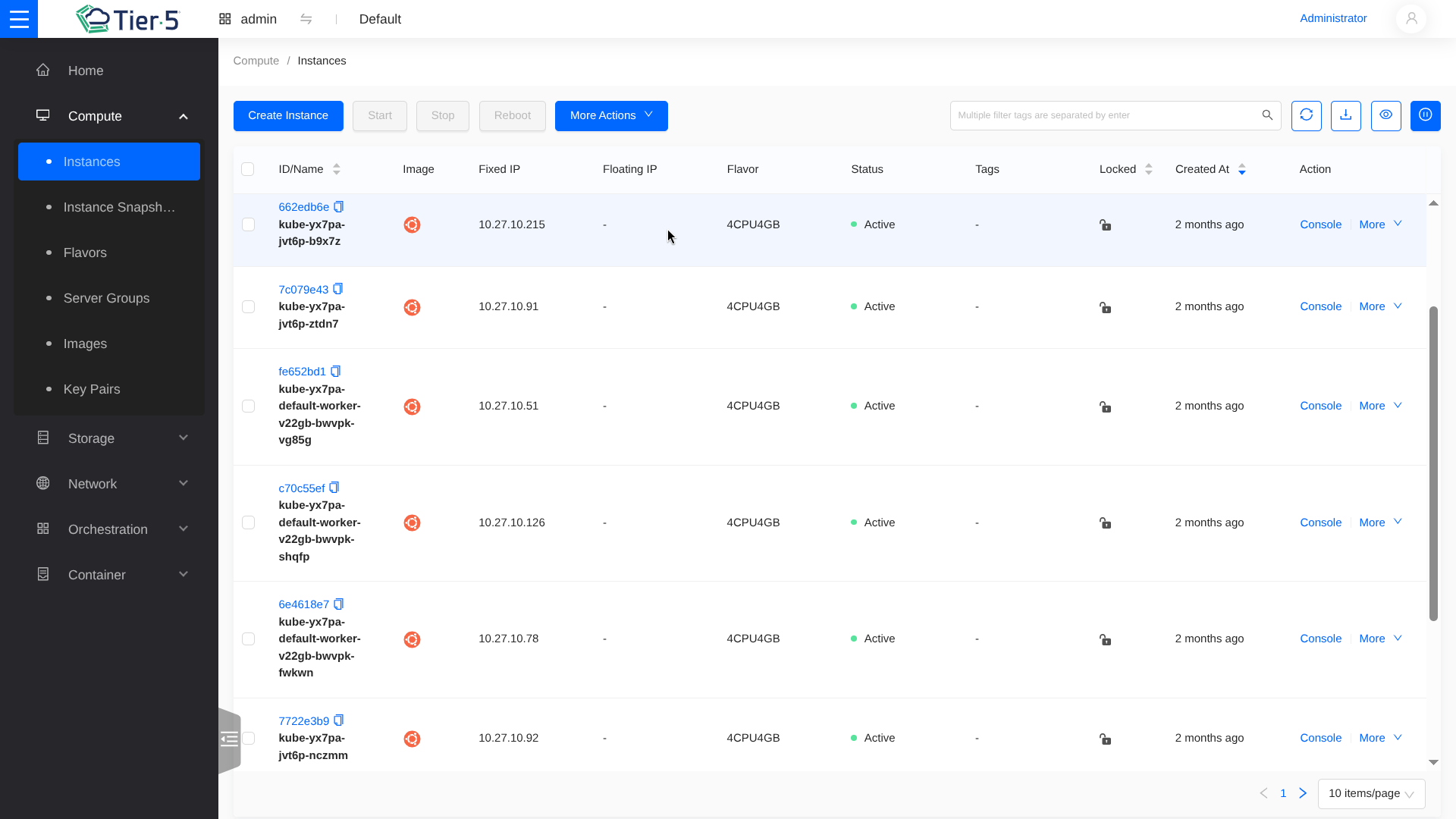
- This view shows all your running virtual machines, their internal/floating IPs, and power state.
-
Click Launch Instance:
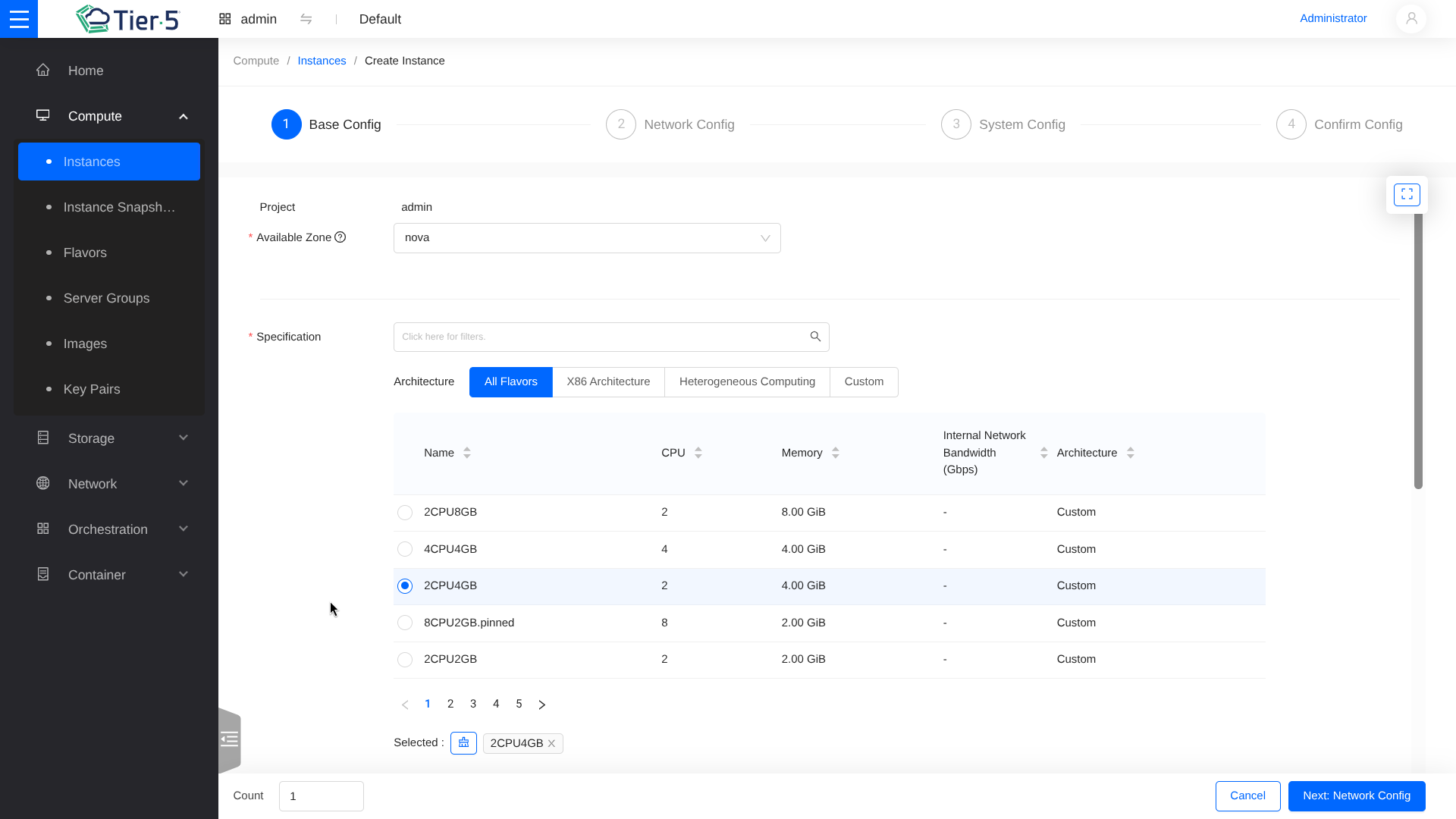
- Instance Name: Give your VM a unique name.
- Availability Zone: Select the zone (e.g.,
nova). - Count: Launch multiple identical instances at once if needed.
-
Select the Boot Source:
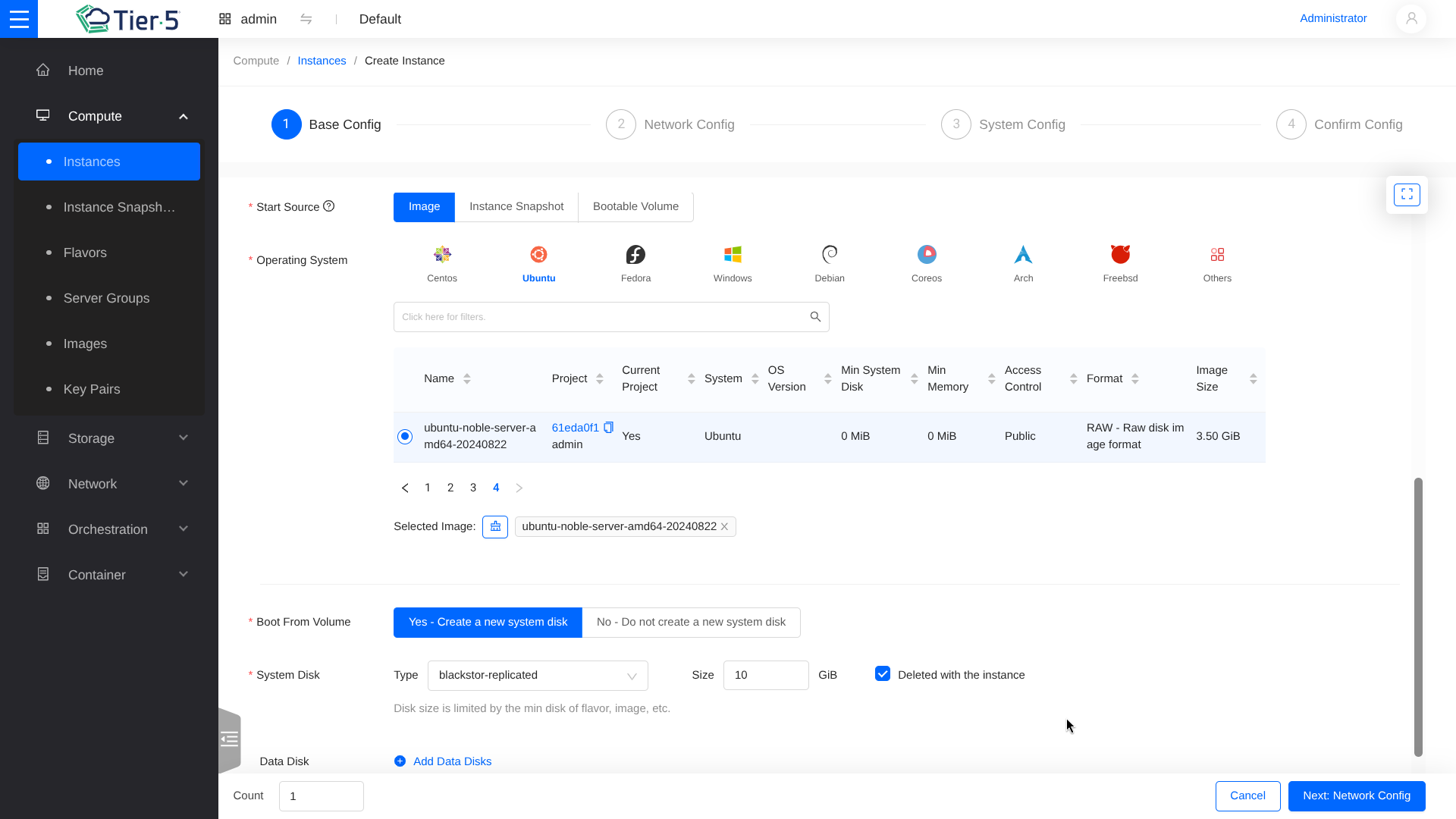
- Image: Boot from a pre-uploaded OS image (e.g., Ubuntu, CentOS).
- Volume: Boot from a persistent block storage volume.
- Volume Size: Define the size of the root disk.
- Delete on Terminate: Checked by default for ephemeral root disks. Uncheck if you want the volume to persist/survive after the instance is deleted.
-
Select the Flavor:
- Flavors define the compute capacity (vCPU, RAM, Disk).
- Choose a flavor that matches your workload requirements.
-
Configure Networking:
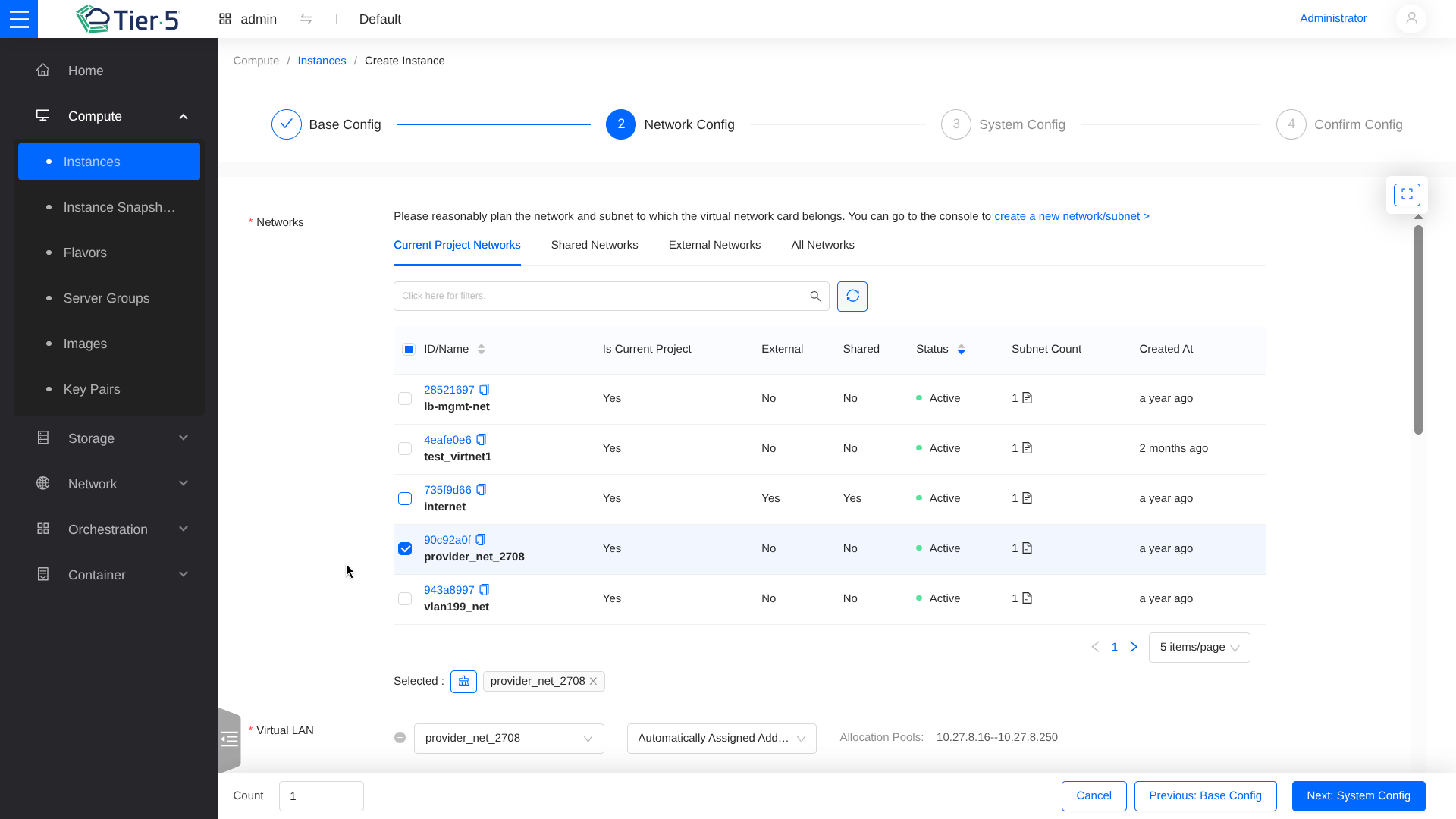
- Select the private network(s) to attach to the instance.
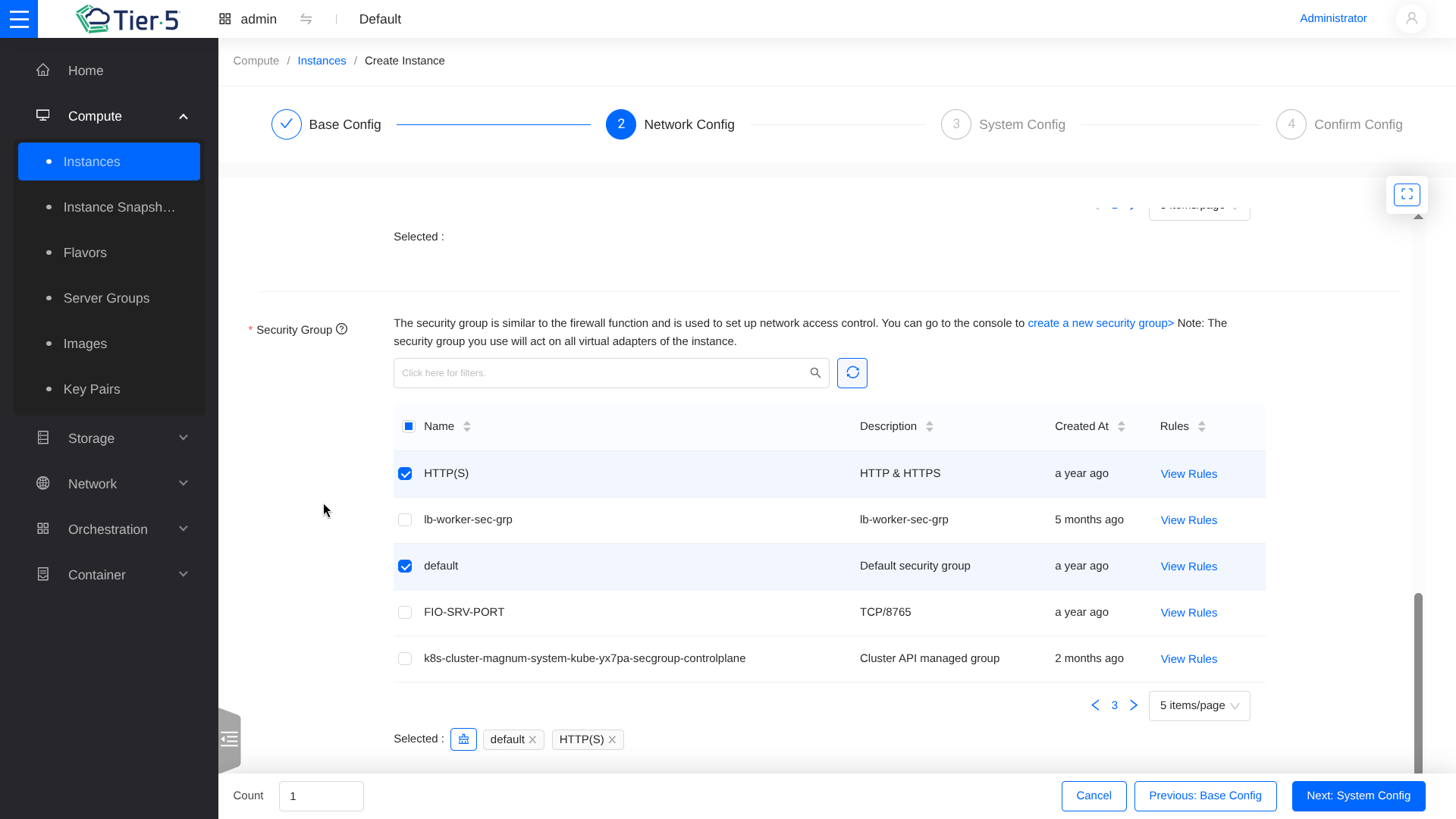 * Security Groups: Assign firewall rules (e.g.,
 default,ssh-web). -
System Configuration:
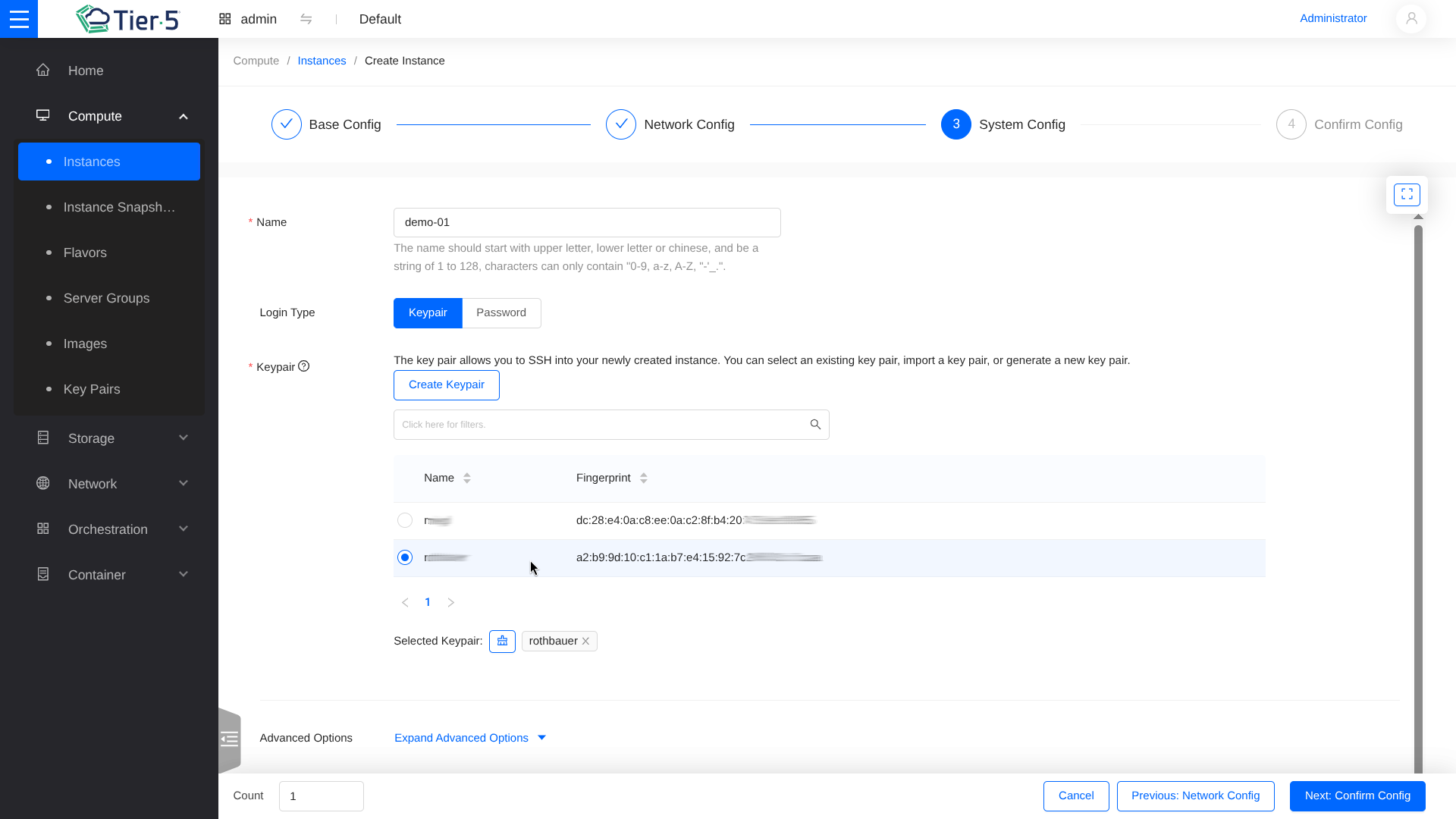
- Key Pair: Select an SSH key pair for secure access.
-
Review and Launch:
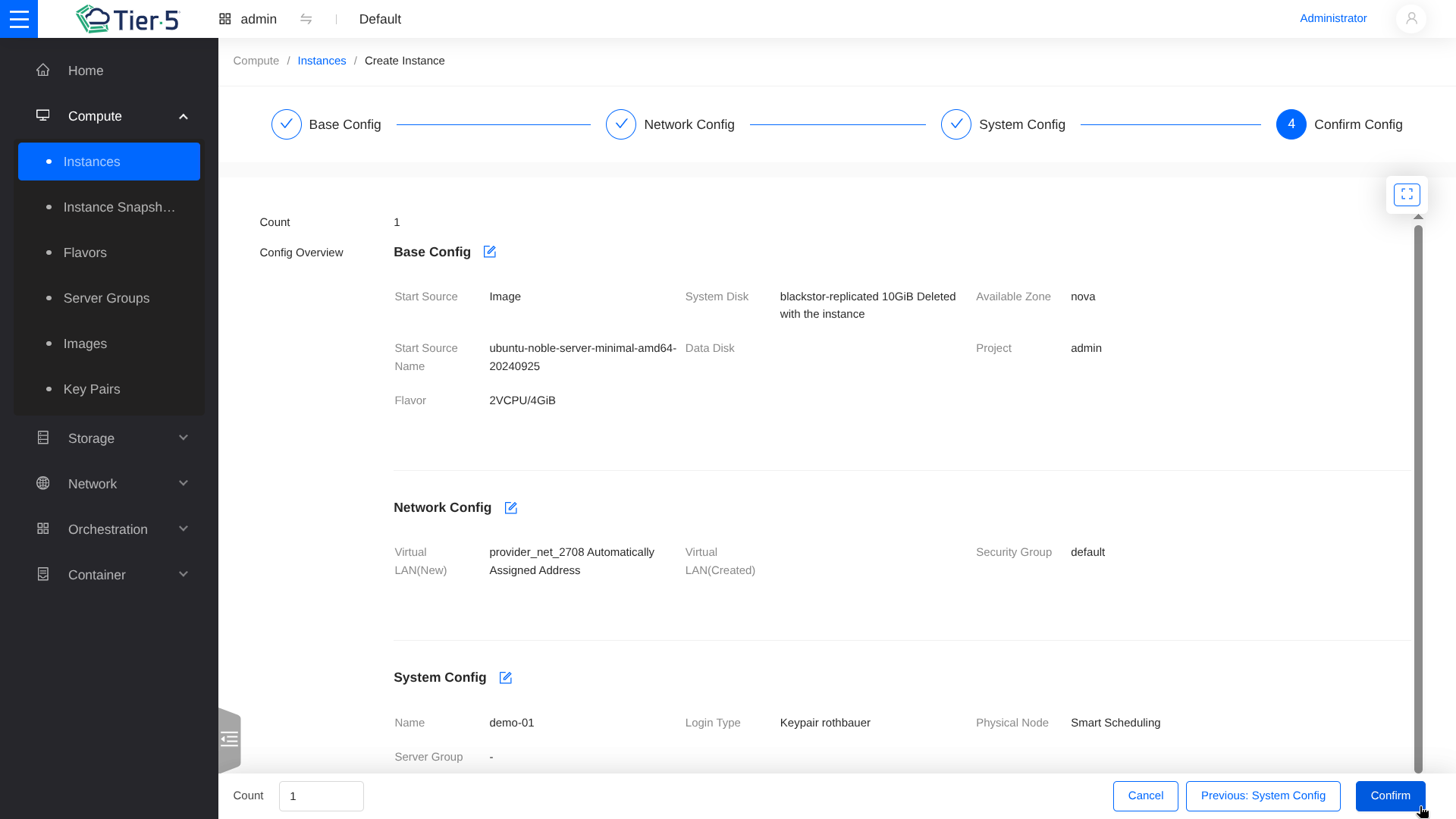
- Click Launch Instance to start the provisioning process.
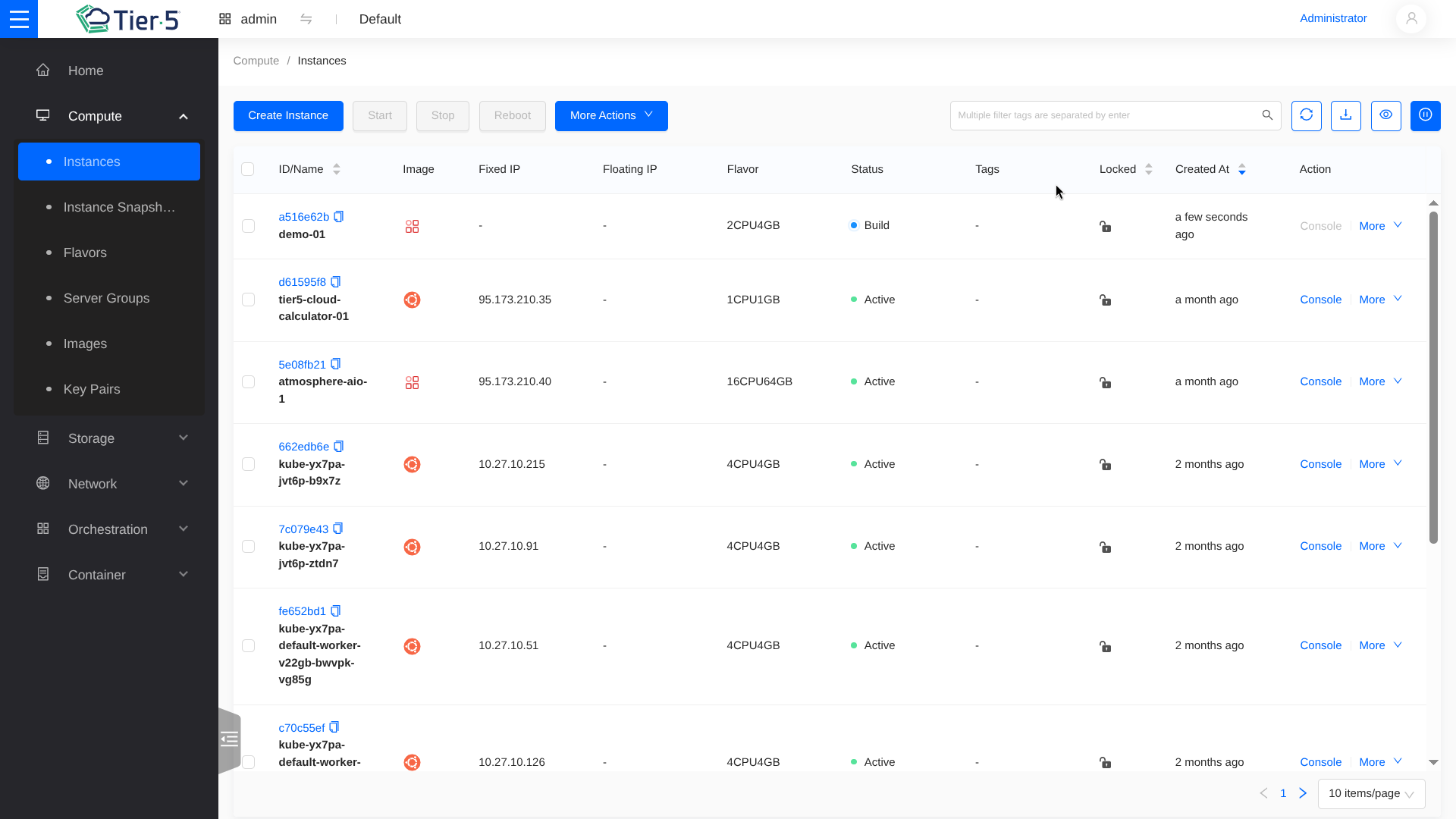
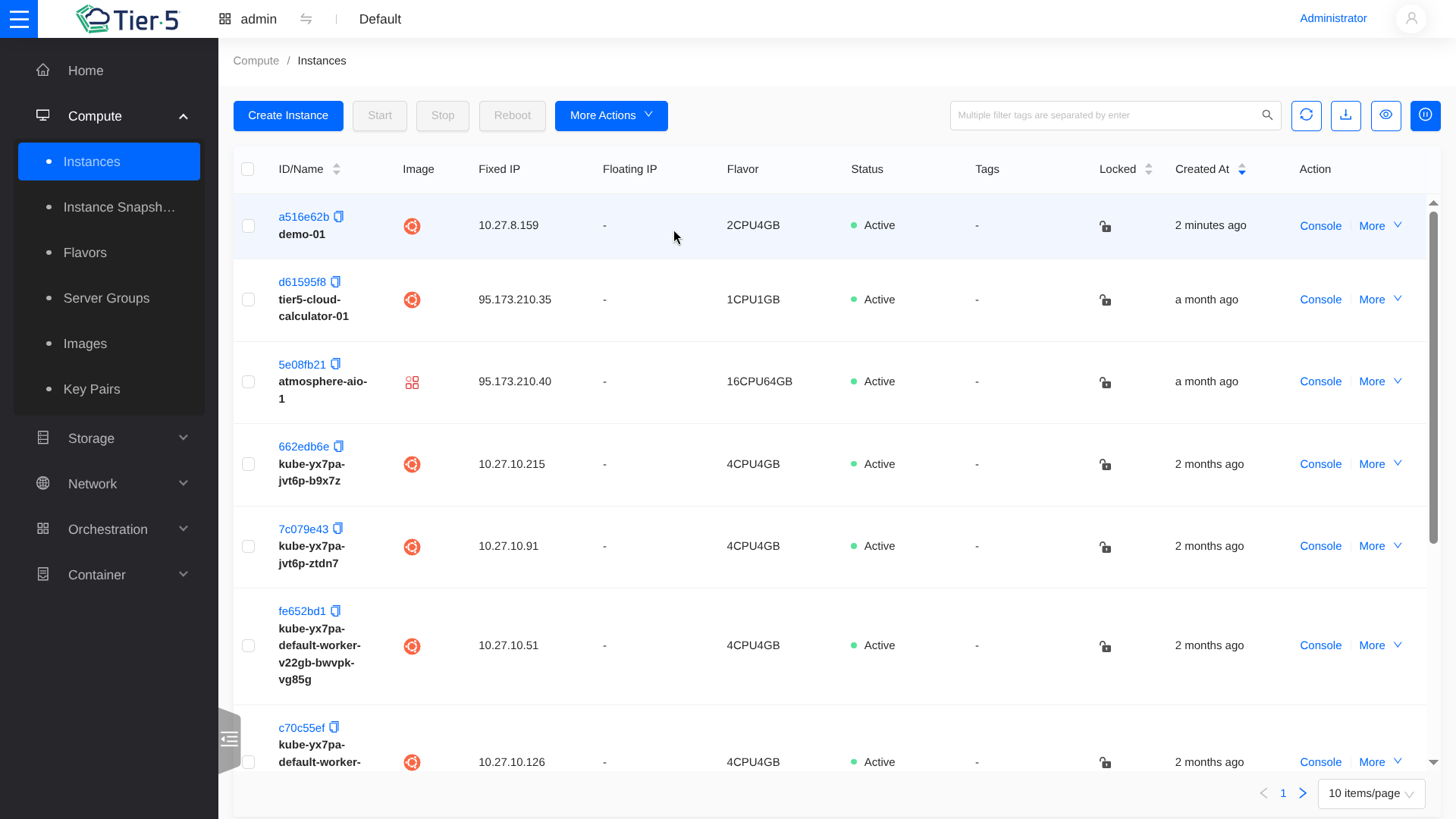
- The status will change from
BuildtoActiveonce ready.
Resizing an Instance
If your workload increases, you can resize the instance to a larger flavor.
- Ensure the VM is powered off for safe resizing (recommended).
- Select Resize Instance from the actions menu.
Managing Images
- Images: View available base OS images.
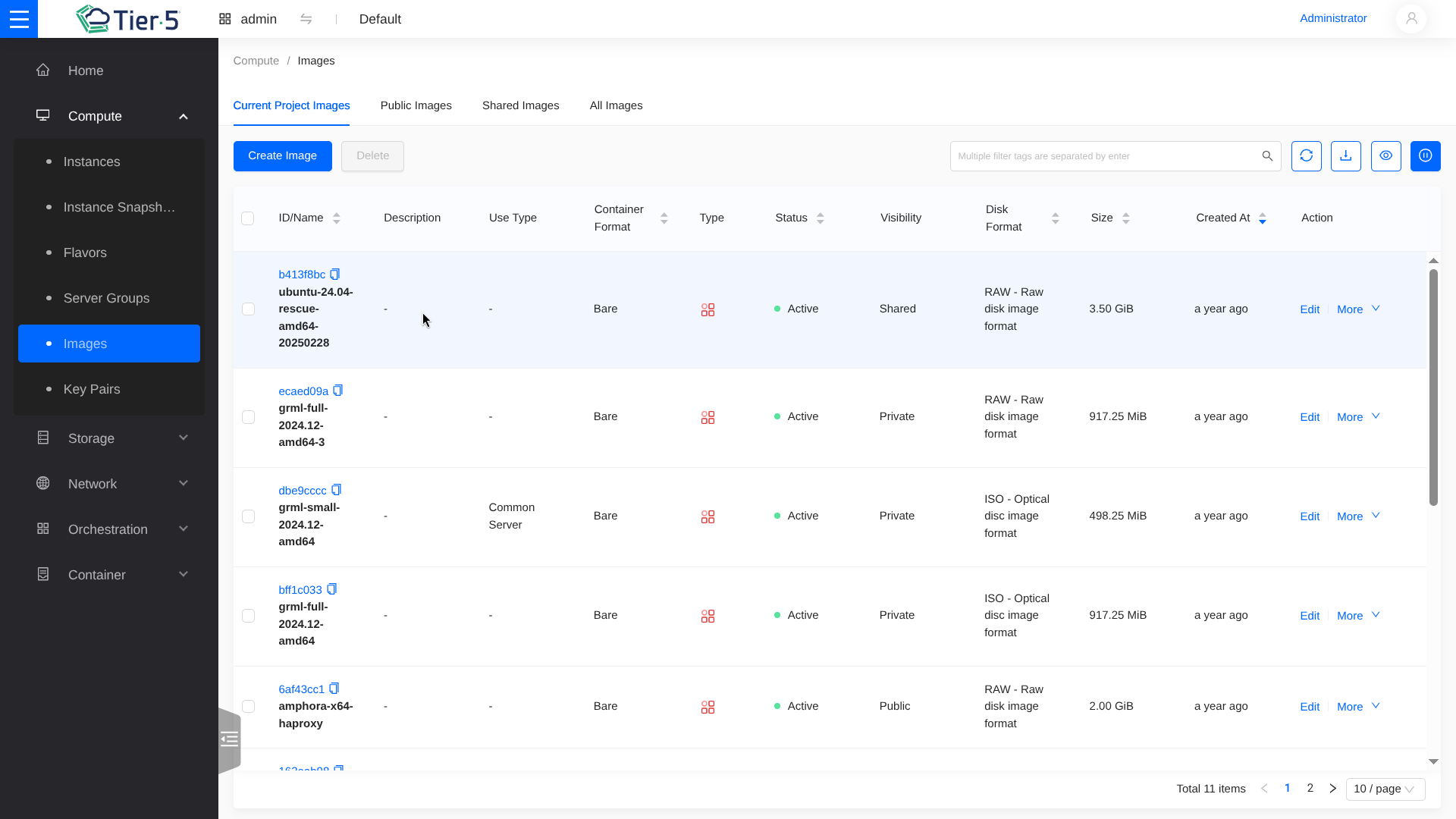
Uploading an Image
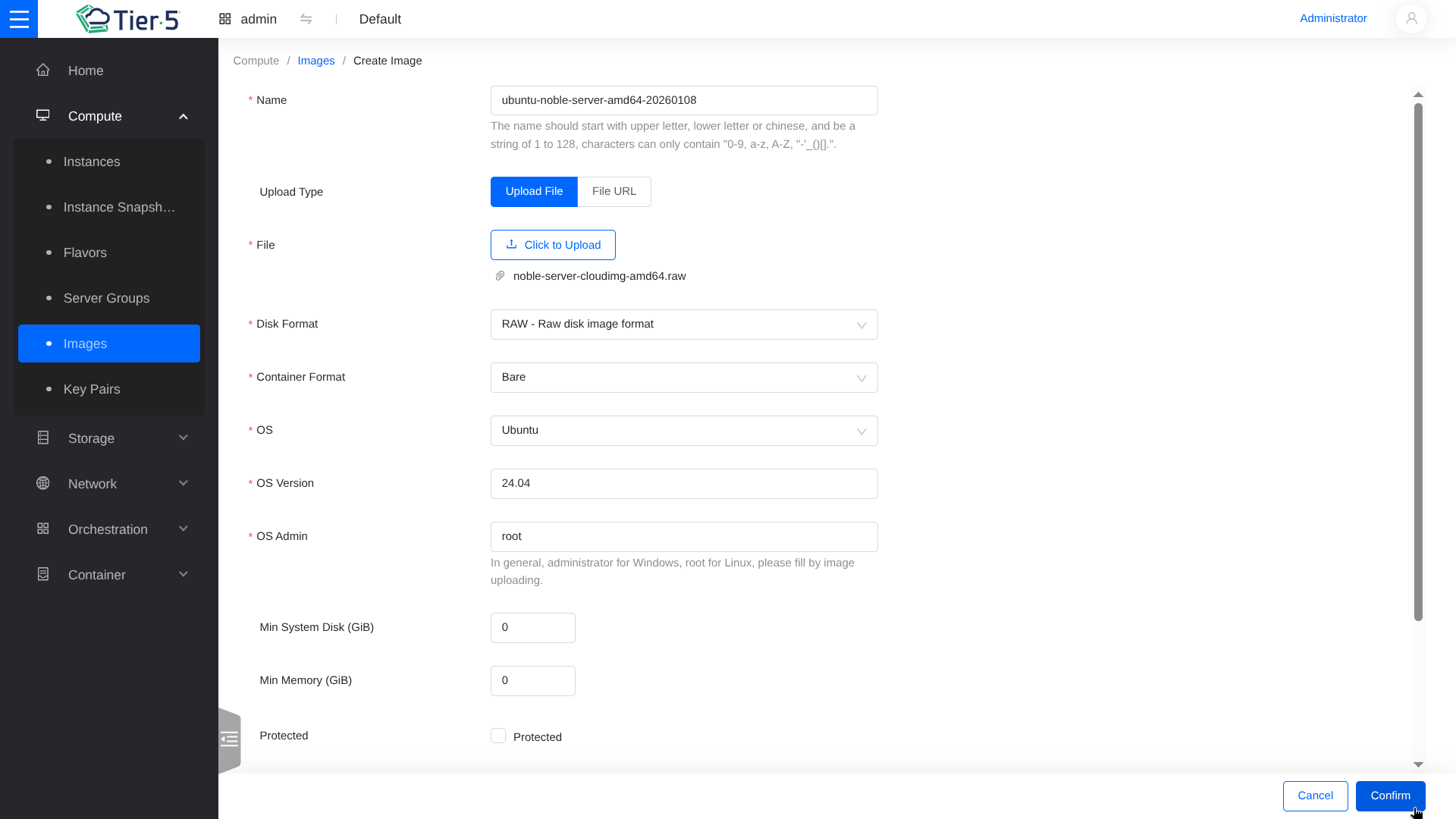
To upload a new image (e.g., noble-server-cloudimg-amd64.raw):
- Click create Image (top right).
-
Image Details:
- Image Name: Enter a descriptive name.
- File: Select Browse to upload your file.
- Format: Select RAW disk format and Bare container format.
Optimal Formats
For best performance and compatibility, we recommend using RAW disk format and Bare container format.
Managing Key Pairs
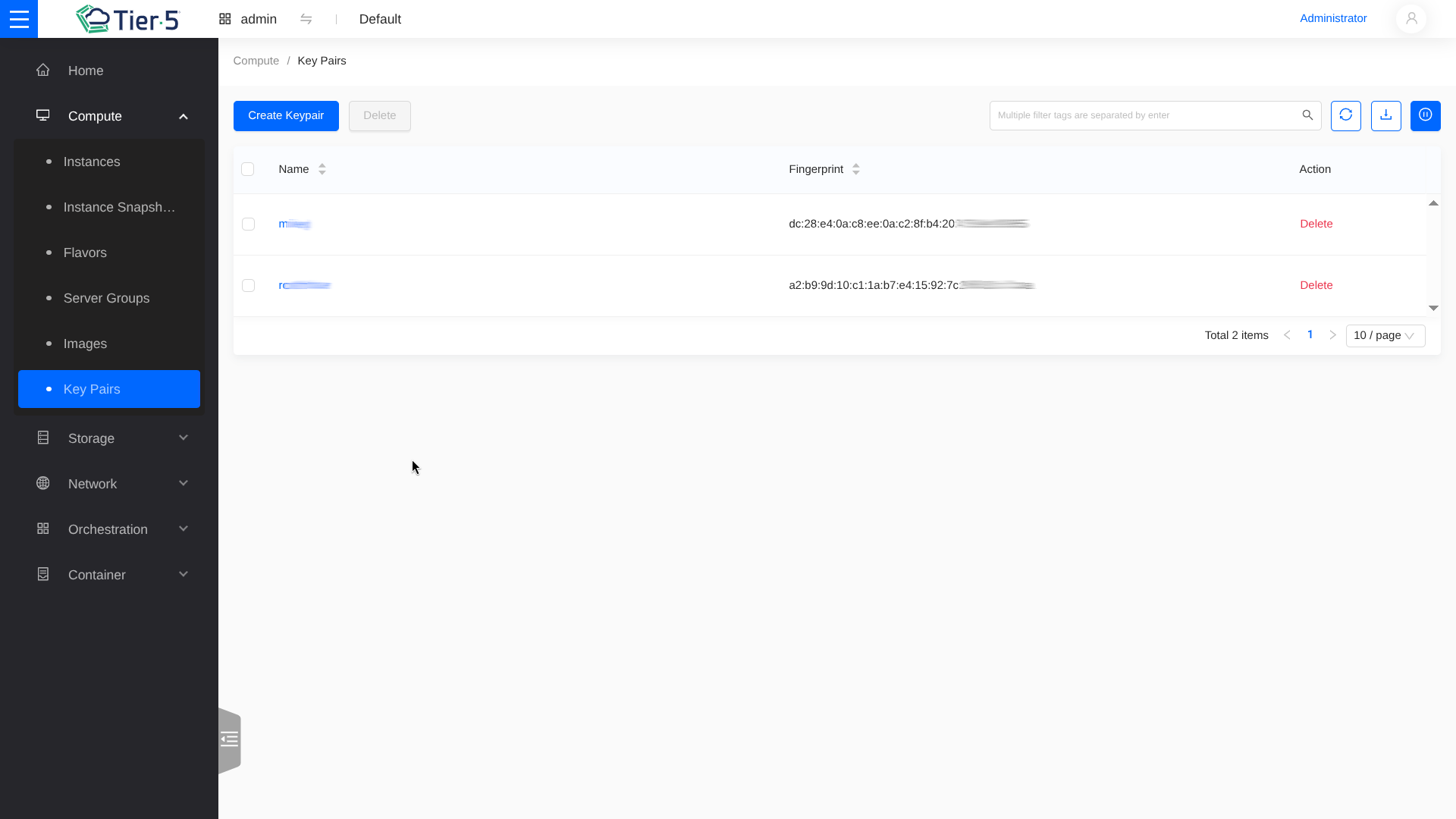
- Key Pairs: specific SSH keys for accessing instances.
Networking (Neutron)
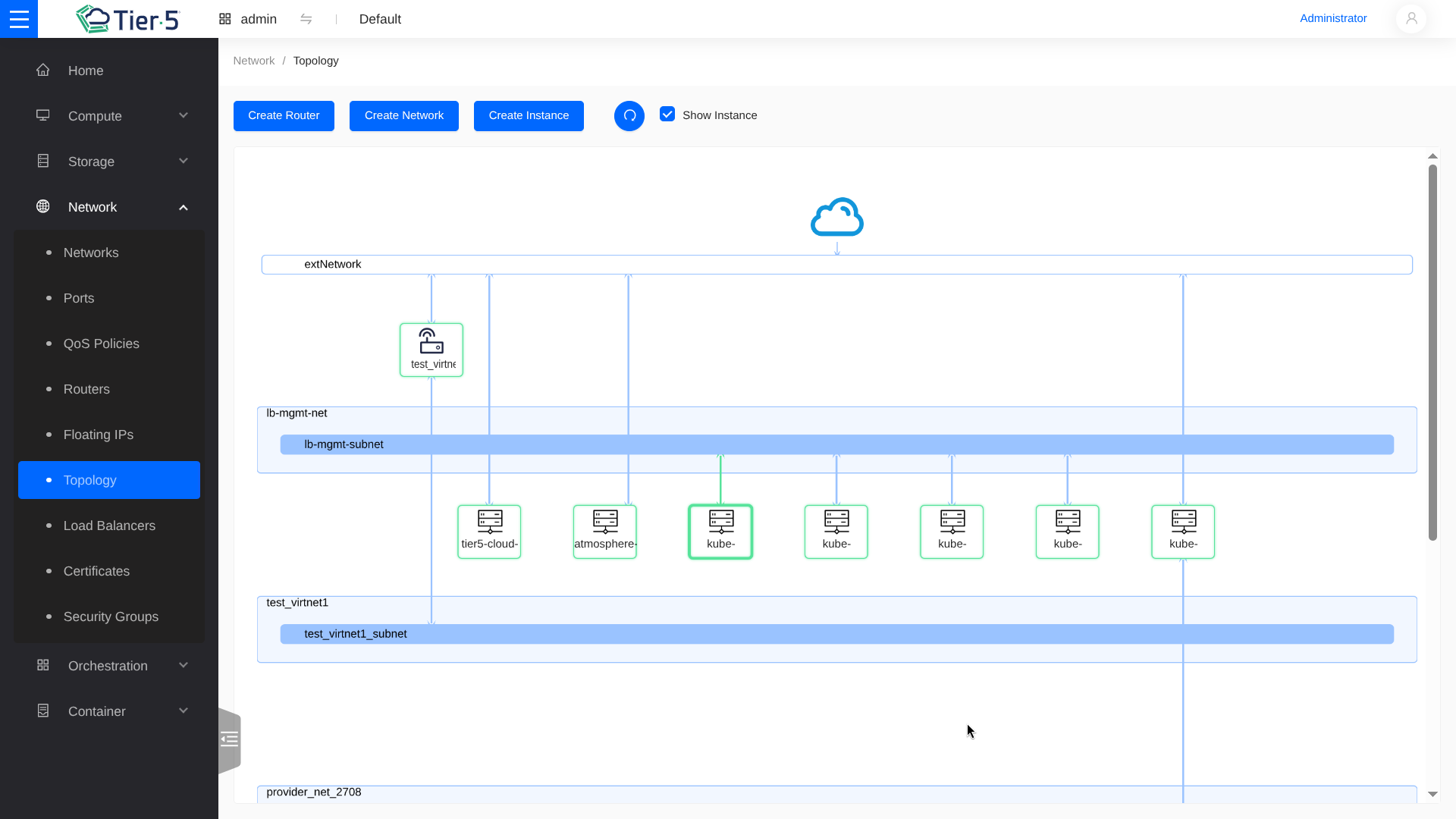
Network Visualization
The Network Topology view provides a graphical representation of your infrastructure.
Creating a Private Network
- Go to Network → Networks.
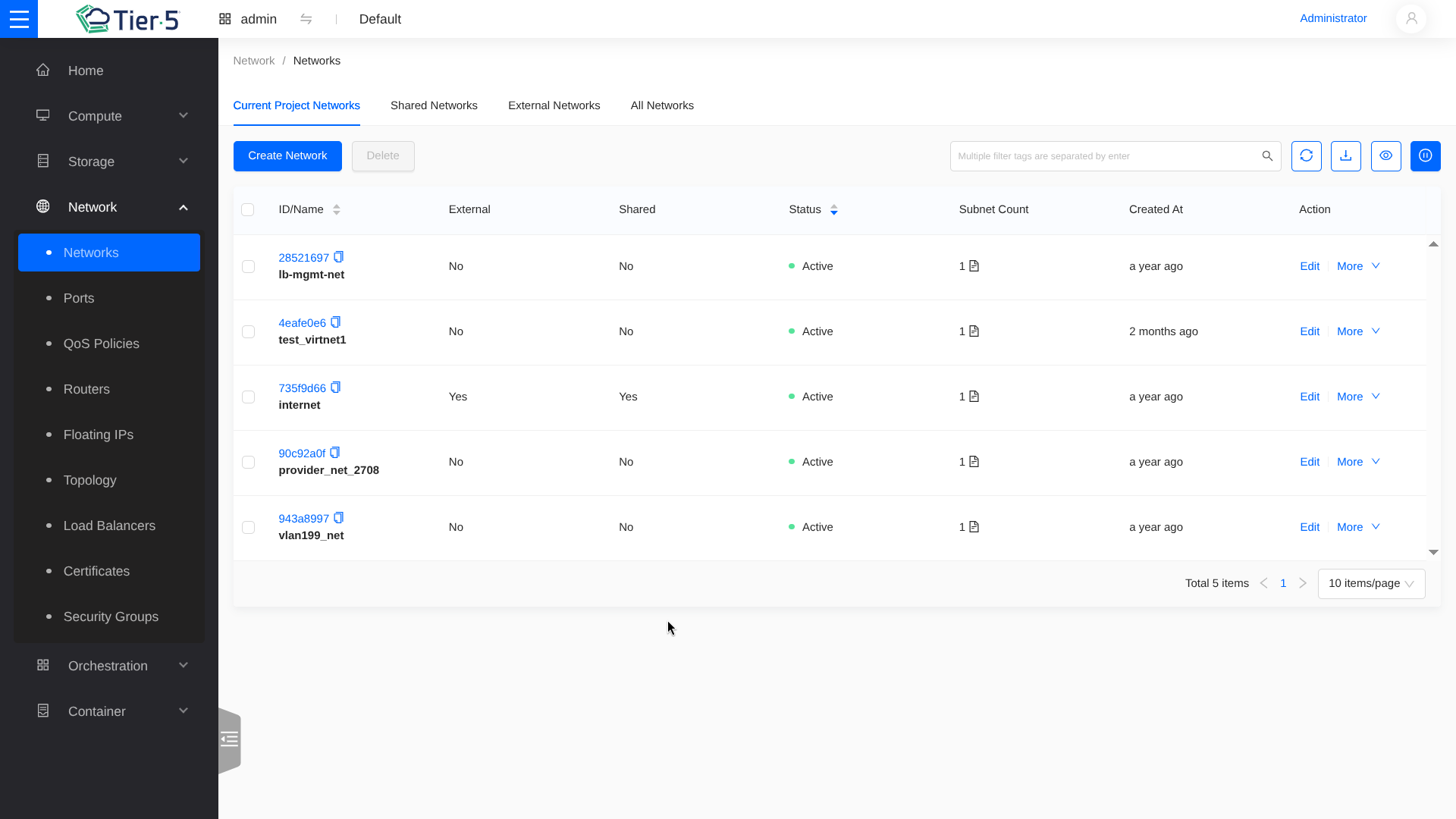
- Click Create Network.
- Define the Network Name and Subnet (CIDR, Gateway).
- Configure DHCP to automatically assign IP addresses to instances.
Configuring Security Groups
Security groups act as a virtual firewall for your instances. By default, all incoming traffic is blocked.
1. Go to Network → Security Groups.
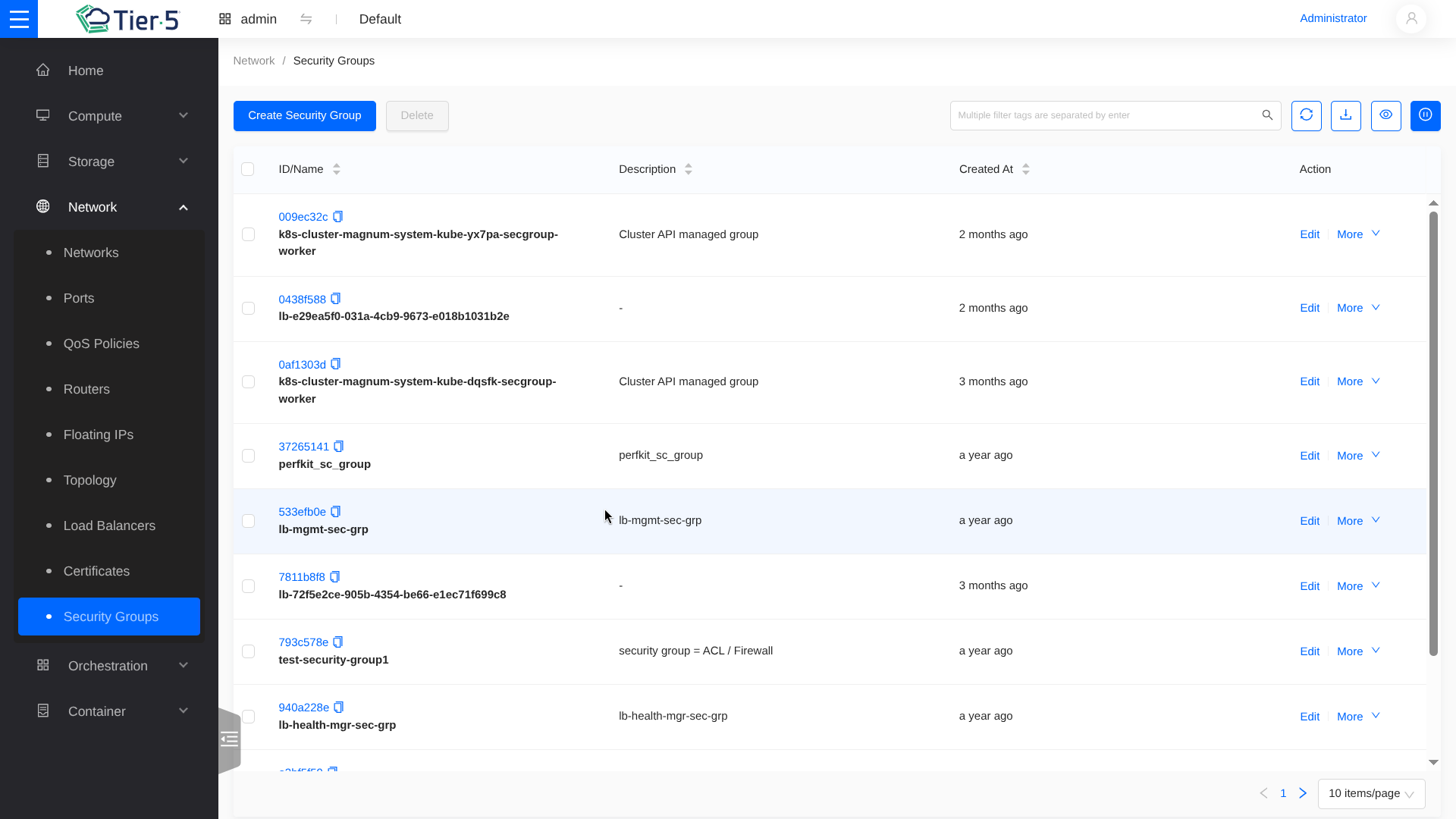 2. Click Manage Rules on a security group.
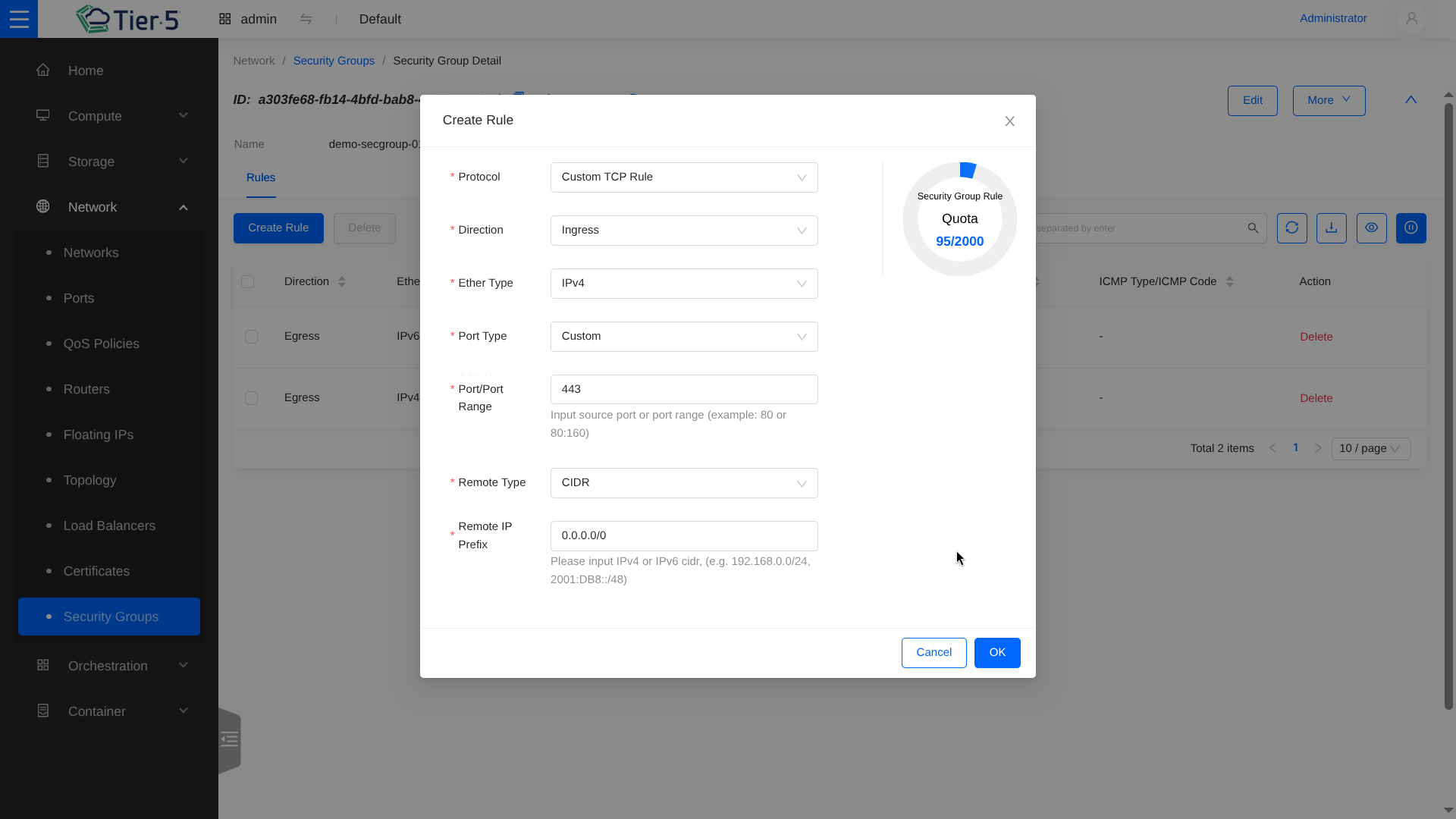
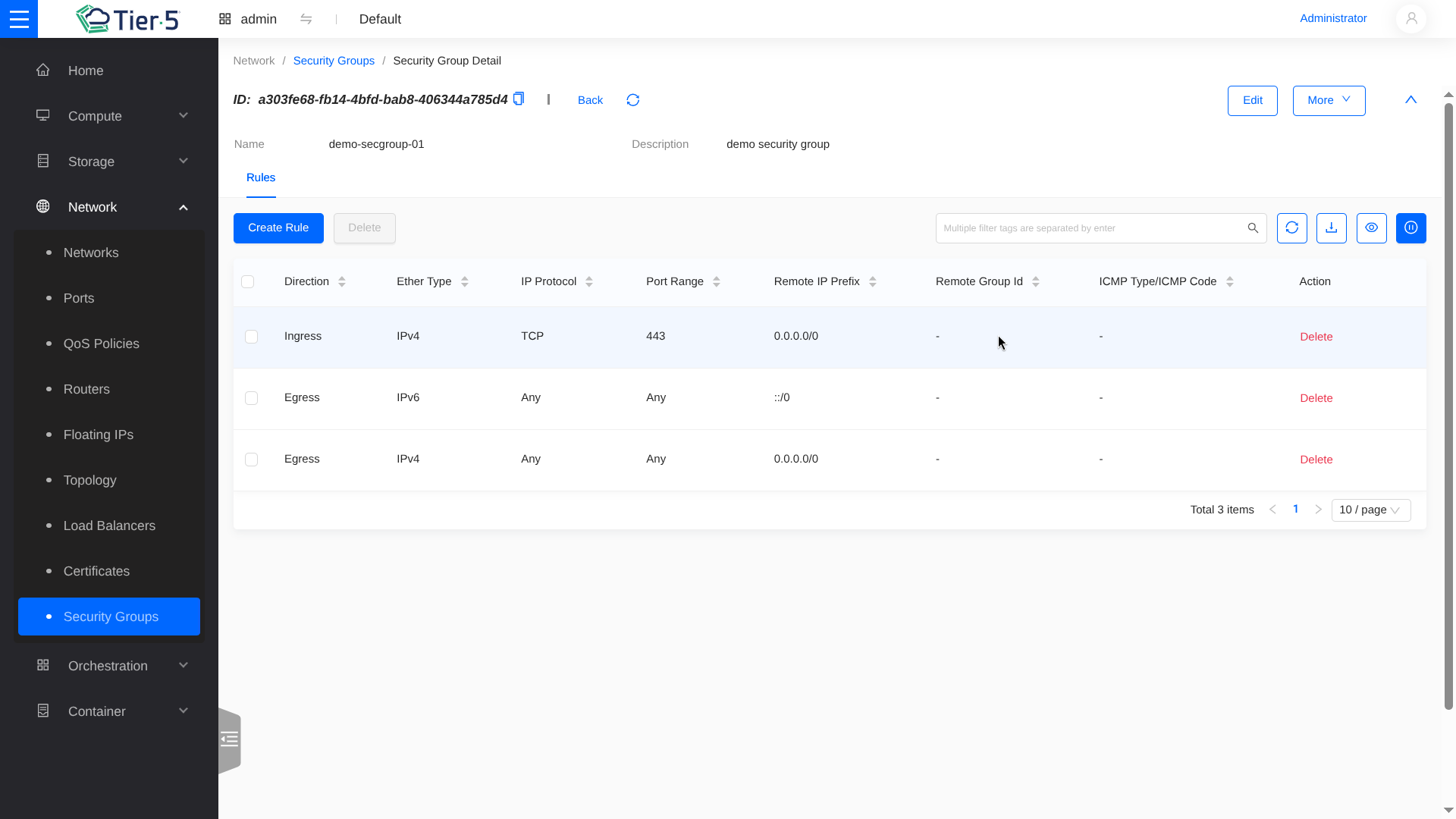 3. Add Rule: Allow specific traffic.
* SSH: TCP Port 22
* HTTP/HTTPS: TCP Port 80/443
* ICMP: For ping/traceroute
3. Add Rule: Allow specific traffic.
* SSH: TCP Port 22
* HTTP/HTTPS: TCP Port 80/443
* ICMP: For ping/traceroute
Load Balancing (Octavia)
To distribute traffic among multiple web servers:
- Navigate to Network → Load Balancers.
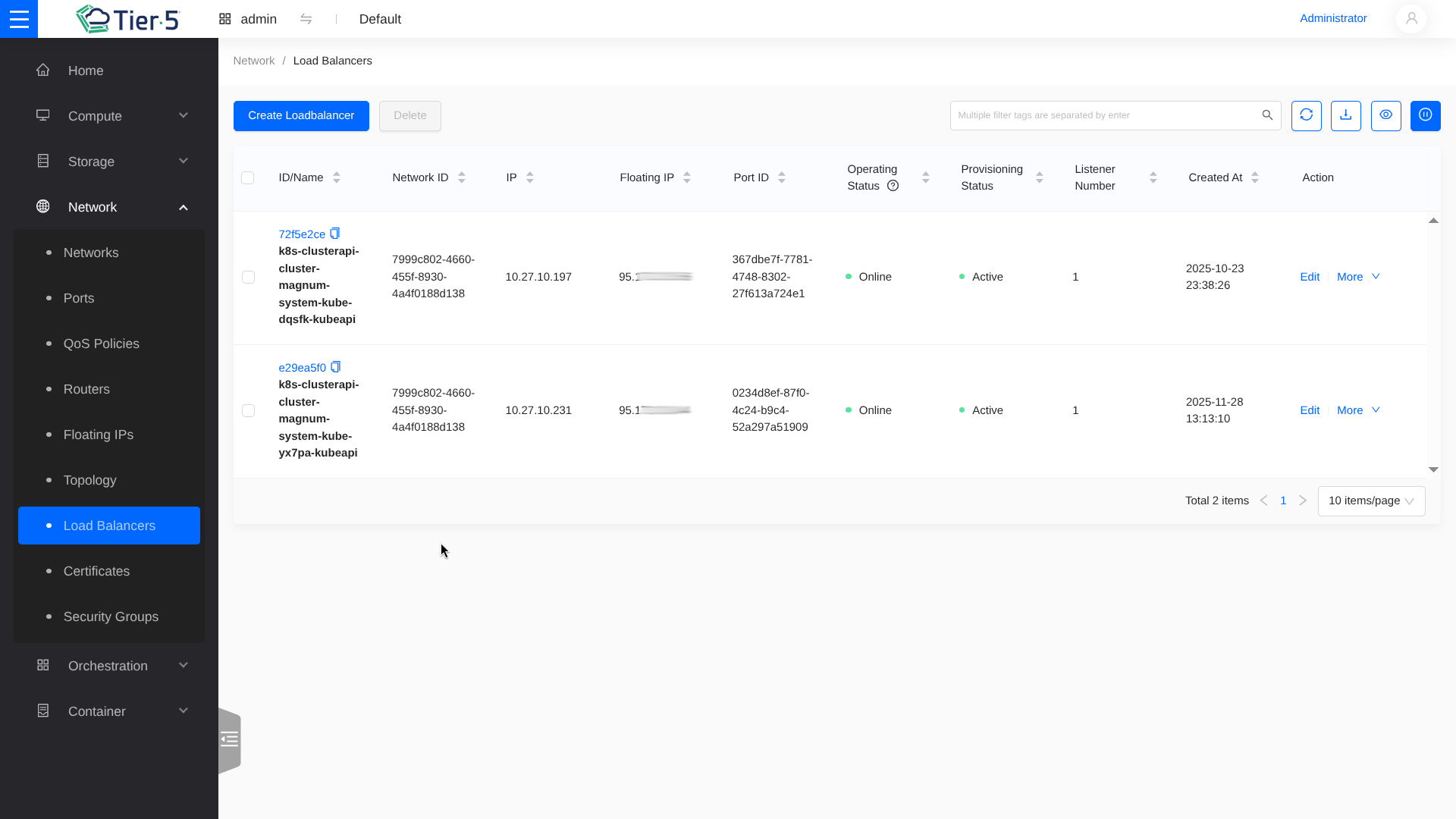
- Click Create Load Balancer.
- Load Balancer Details: Name, IP address (VIP), and Subnet.
- Listener: Protocol (HTTP/TCP) and Port (e.g., 80).
- Pool: The group of backend servers.
- Members: Add your actual Compute instances to the pool.
- Monitor provisioning status until it is Active.
Kubernetes Clusters (Magnum)
Tier5 allows you to deploy fully managed Kubernetes clusters using Magnum.
Advanced Workloads: Kata Containers
For workloads requiring stronger isolation, you can use Kata Containers with your Magnum clusters. See the Kata Containers Guide.
-
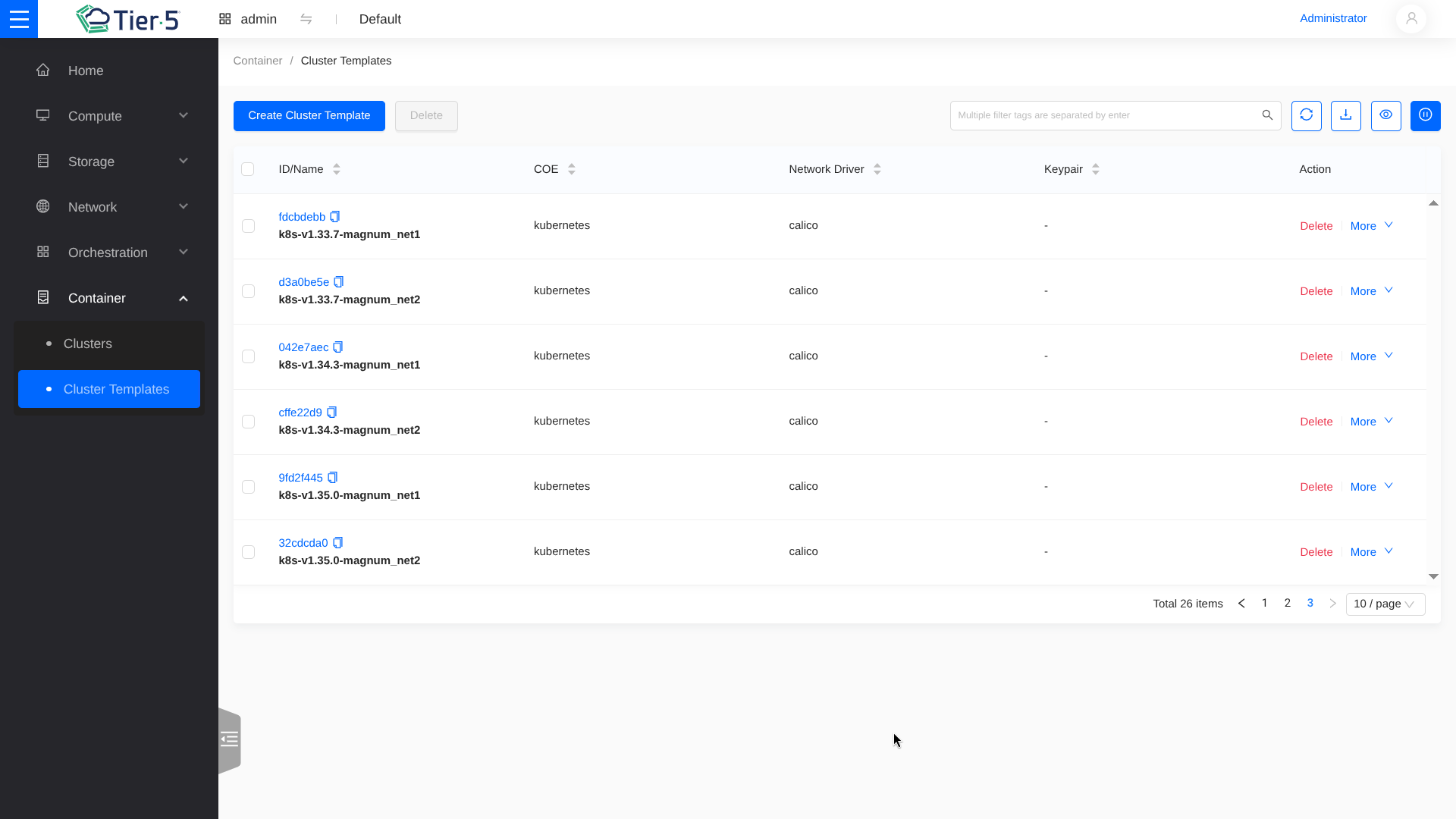
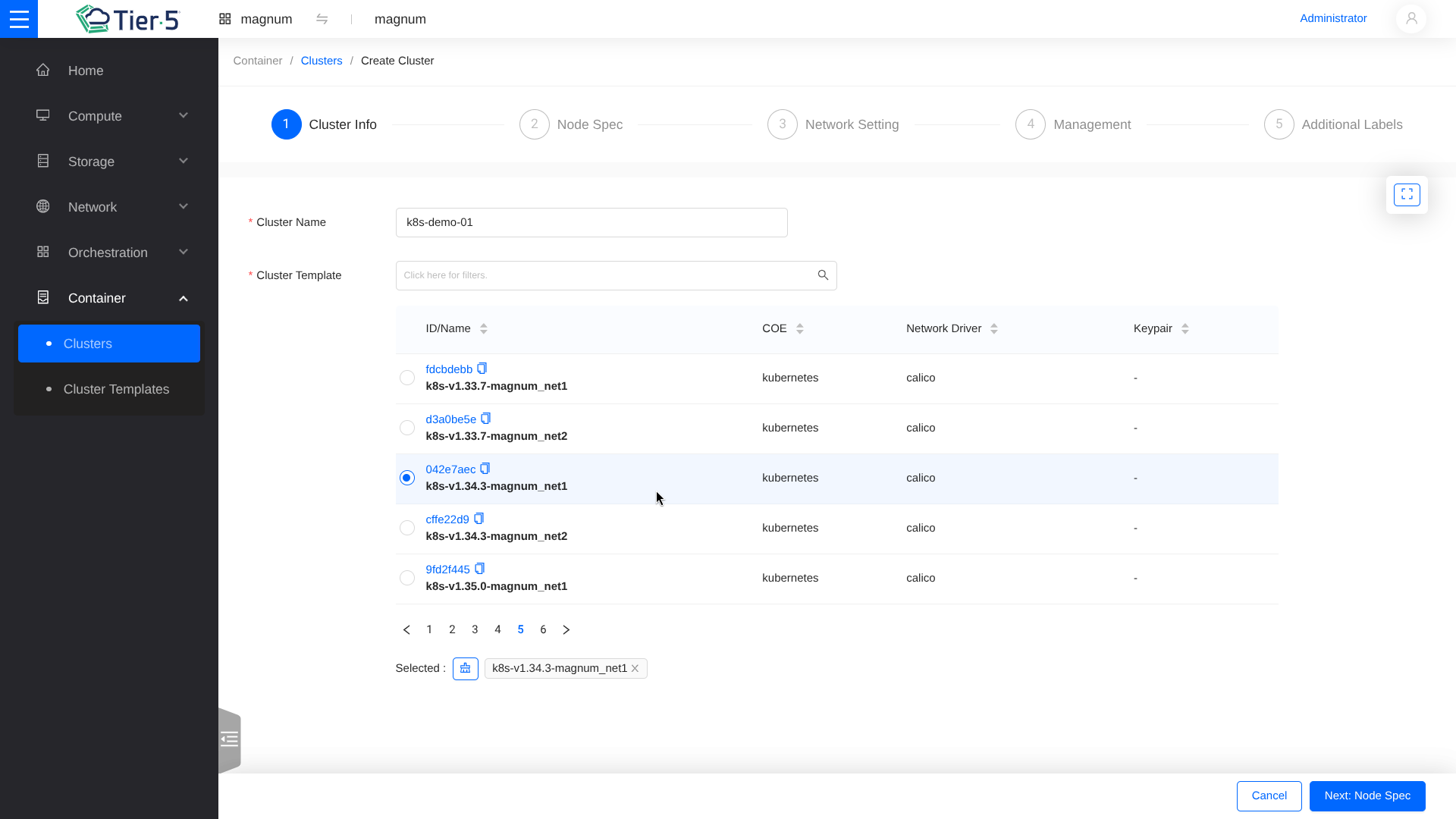
Cluster Templates: Start by selecting or creating a template that defines the OS, Container Runtime (Docker/containerd), and Network Driver.
-
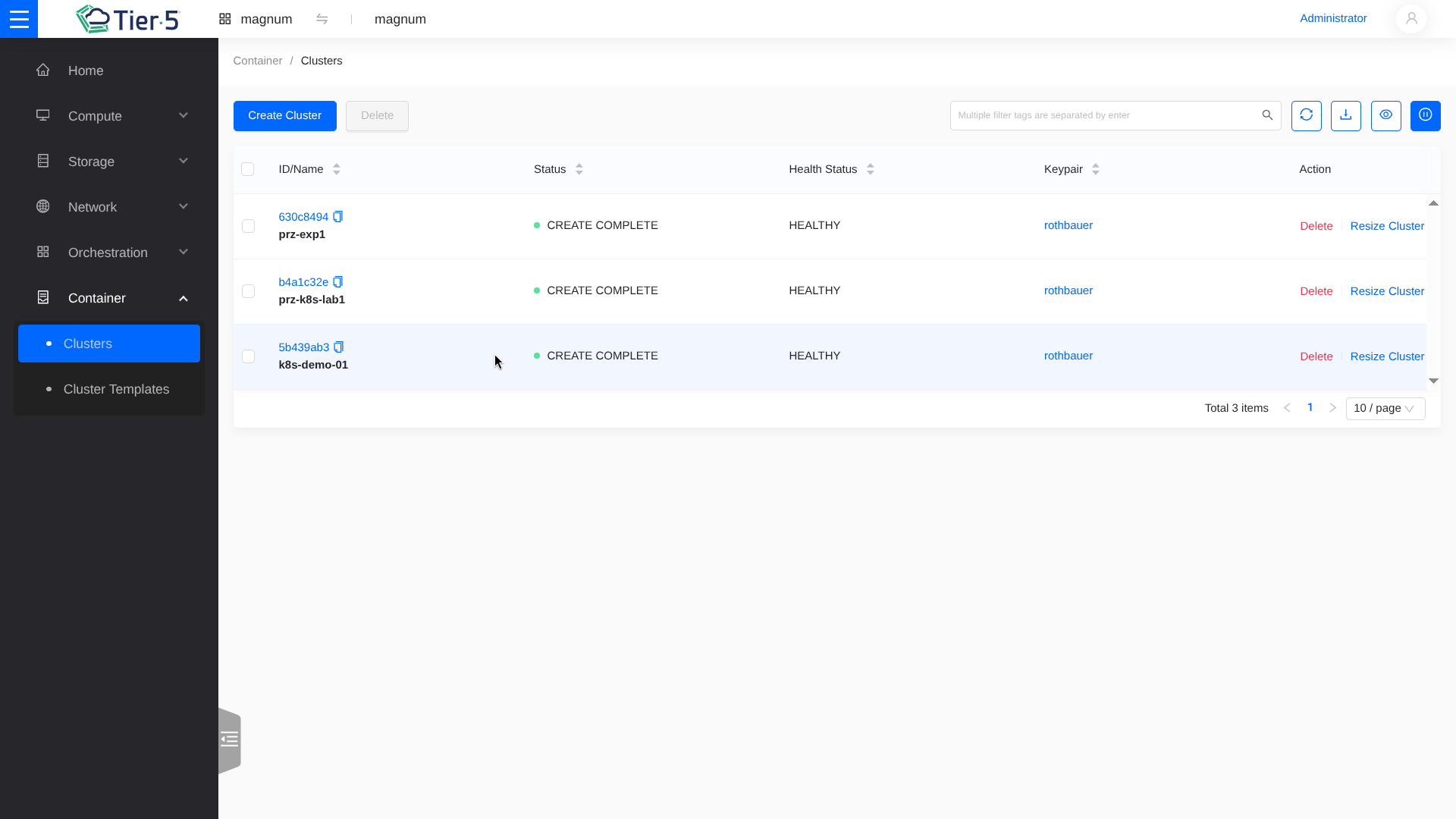
Create Cluster: Go to Container Infra → Clusters and click Create Cluster.
-
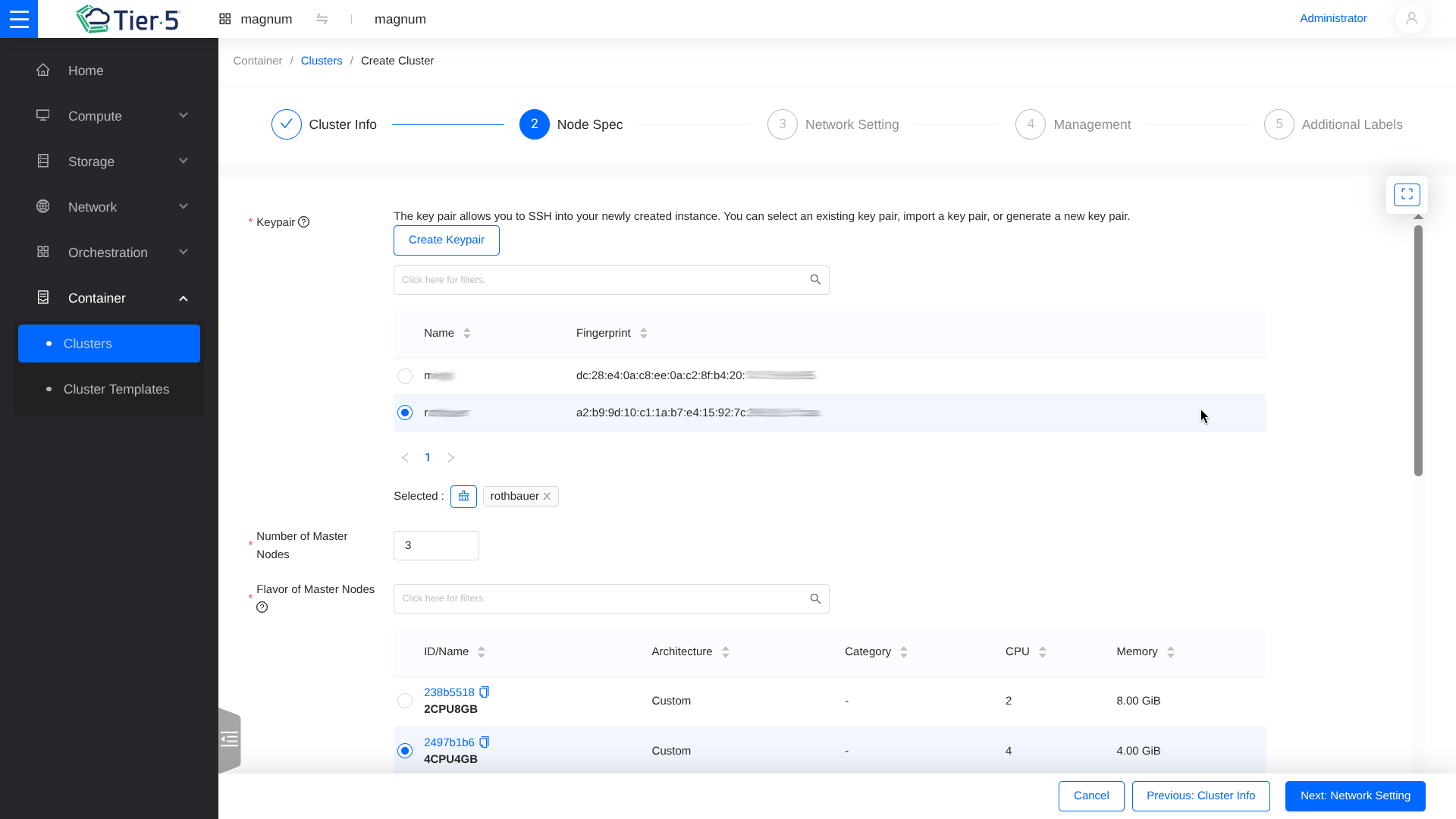
Configure Cluster Details:
- Master Count: Number of control plane nodes (odd number for HA).
- Node Count: Number of worker nodes for your applications.
- Keypair: SSH key for node access.
-
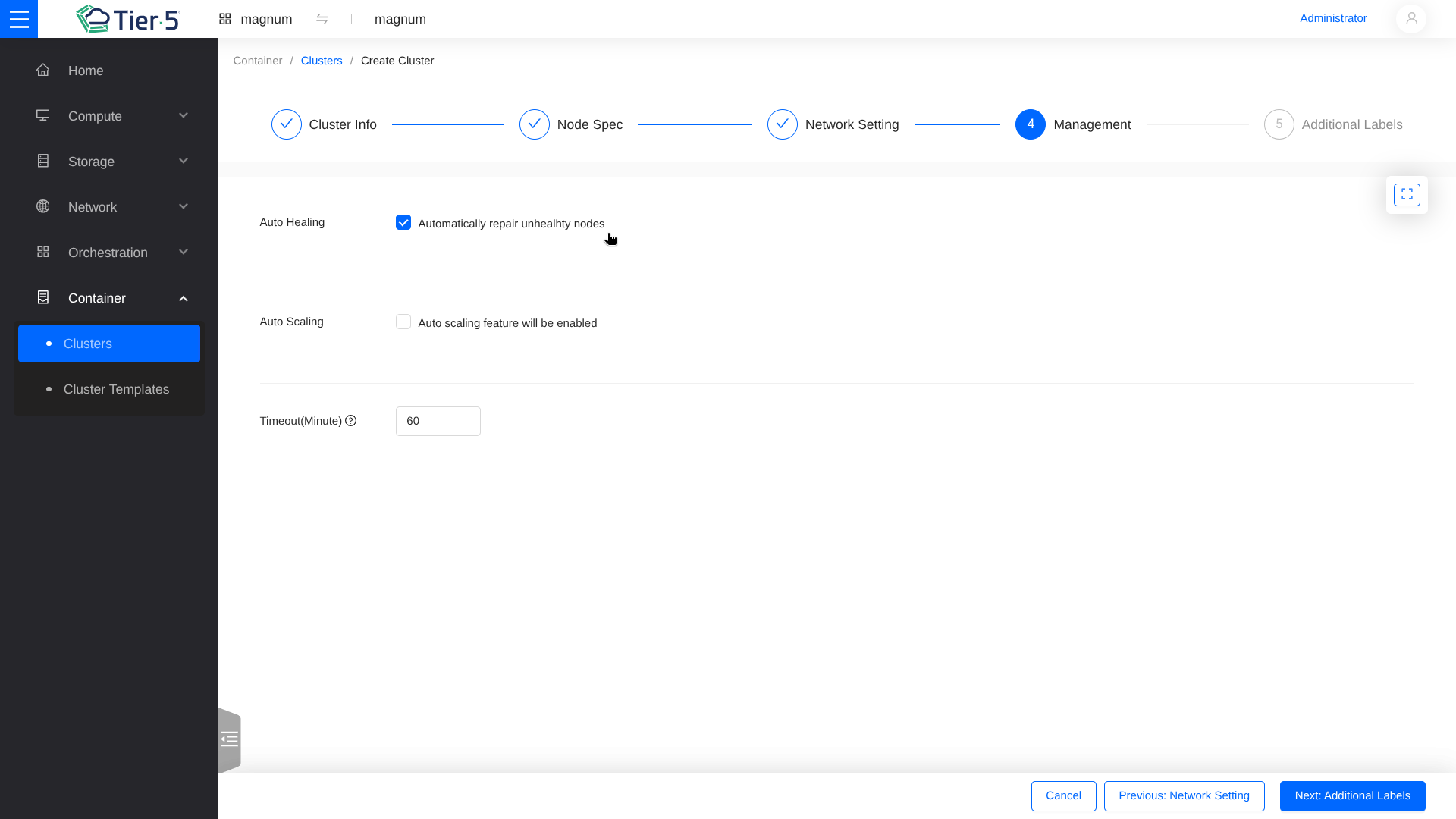
Network & Labels:
- Select the network driver (e.g., Calico, Flannel).
- Enable Auto-healing or Auto-scaling if required.
-
Wait for Creation: The cluster status will move to
CREATE_COMPLETE.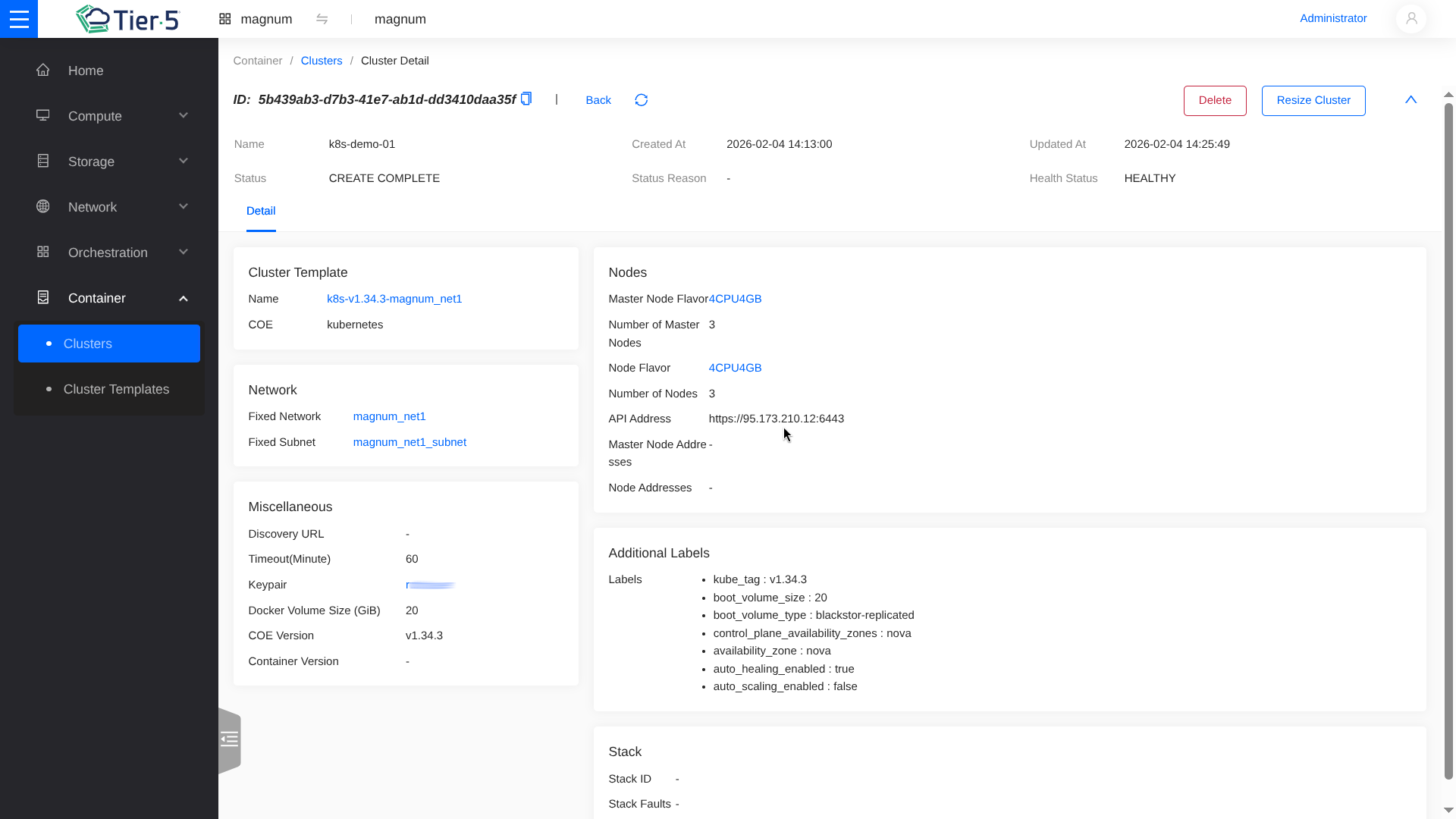
Cluster Access
Once the cluster is created, the configuration file (kubeconfig) can be downloaded directly from the API or Dashboard.
Storage (Cinder)
Managing Volumes
Block storage volumes provide persistent storage for instances.
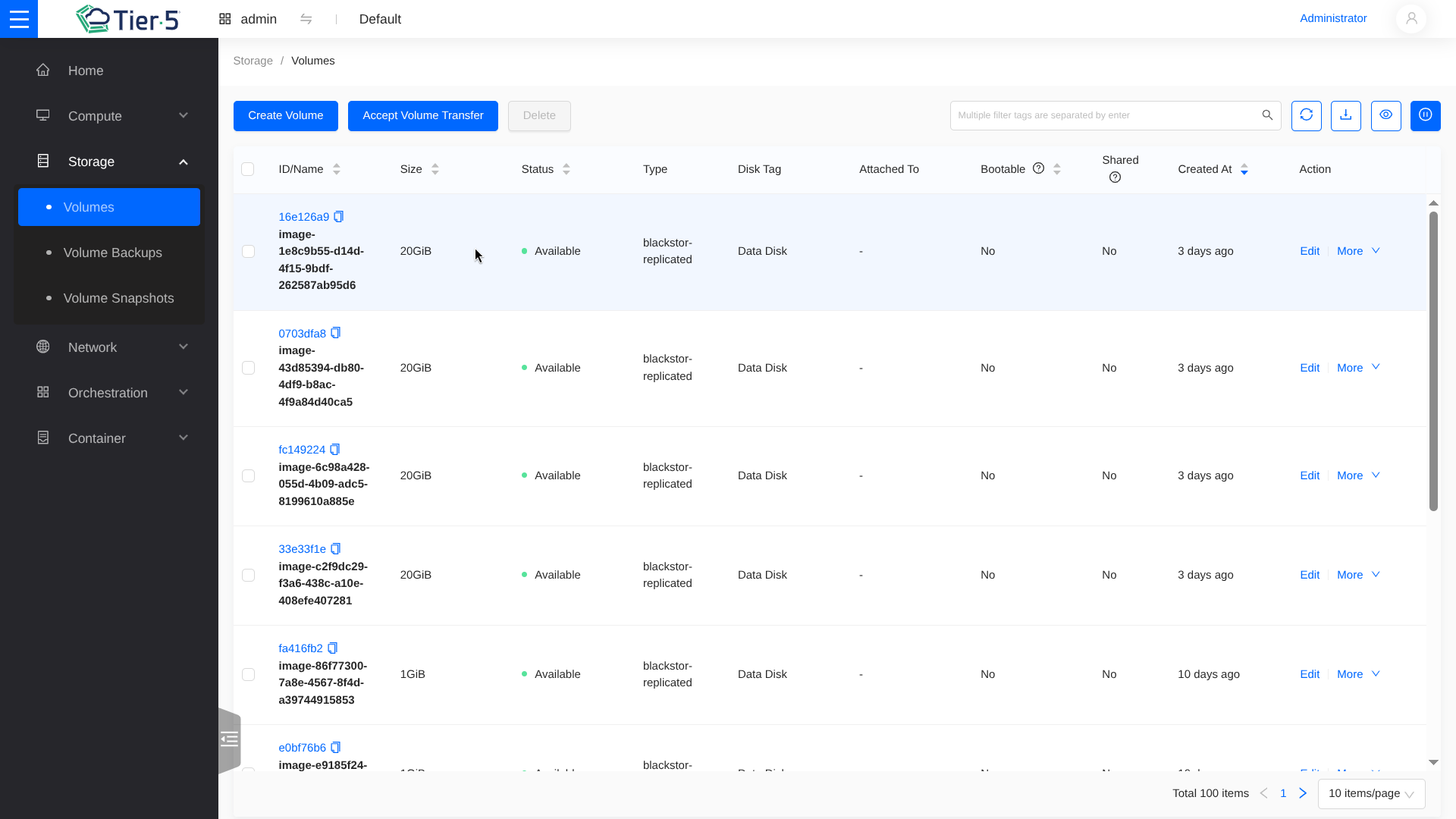
- Create Volume:
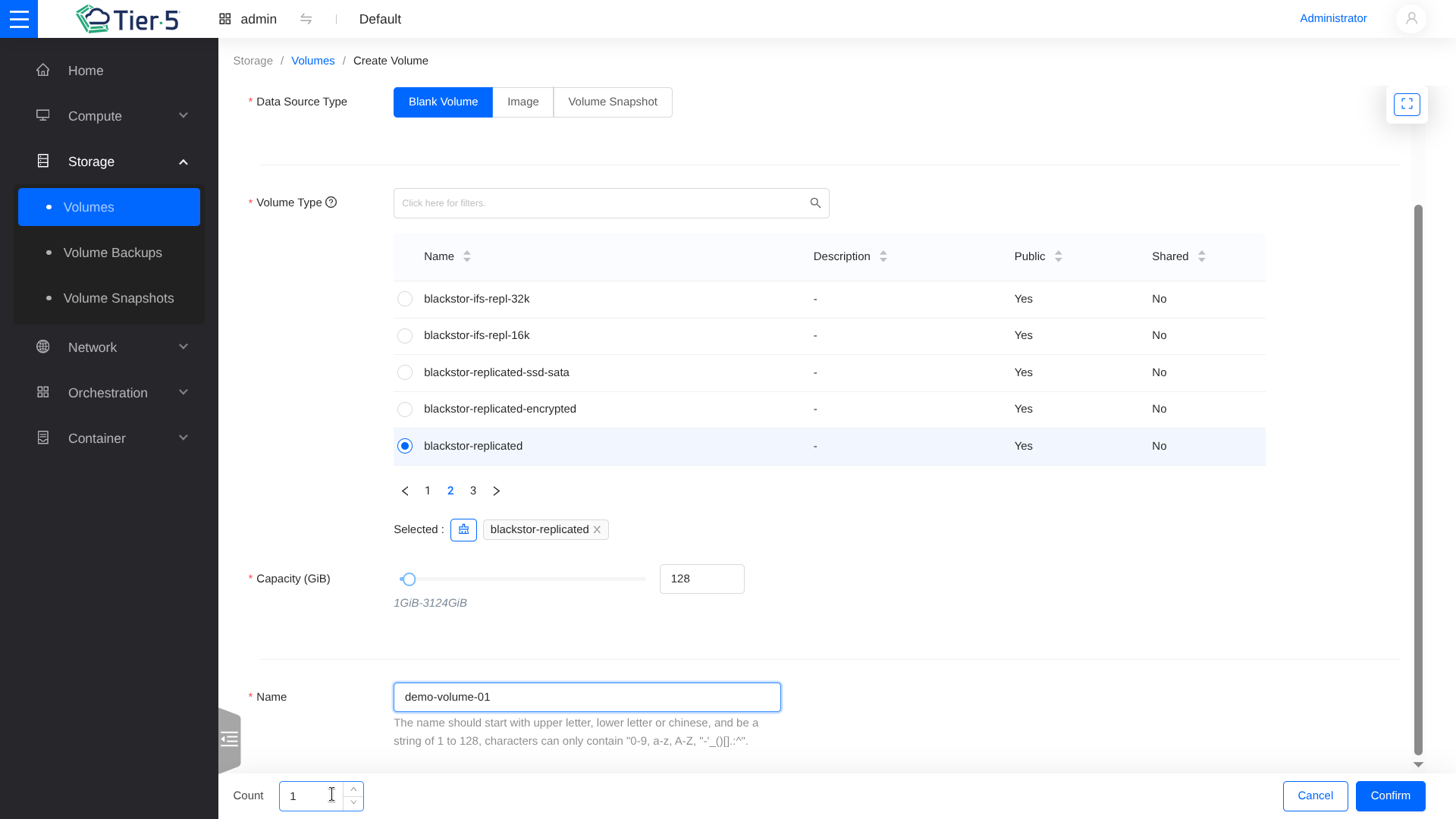
- Type: Select volume performance tier (e.g., HDD, SSD, NVMe).
- Size: Capacity in GB.
- Attach to Instance:
- Once created, use Manage Attachments to connect the volume to a running instance.
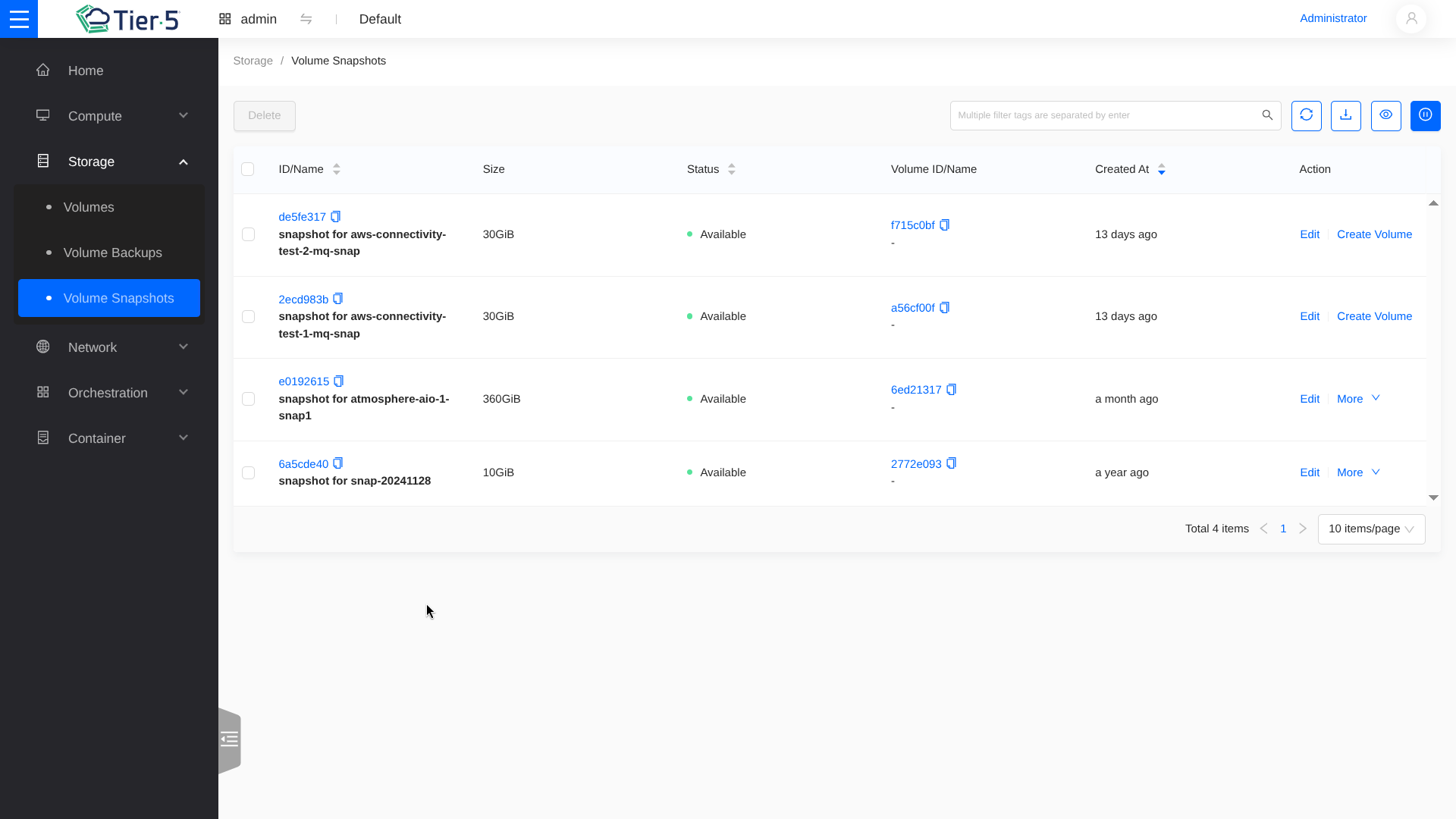
Volume Snapshots
Snapshots allow you to save the state of a volume at a specific point in time.
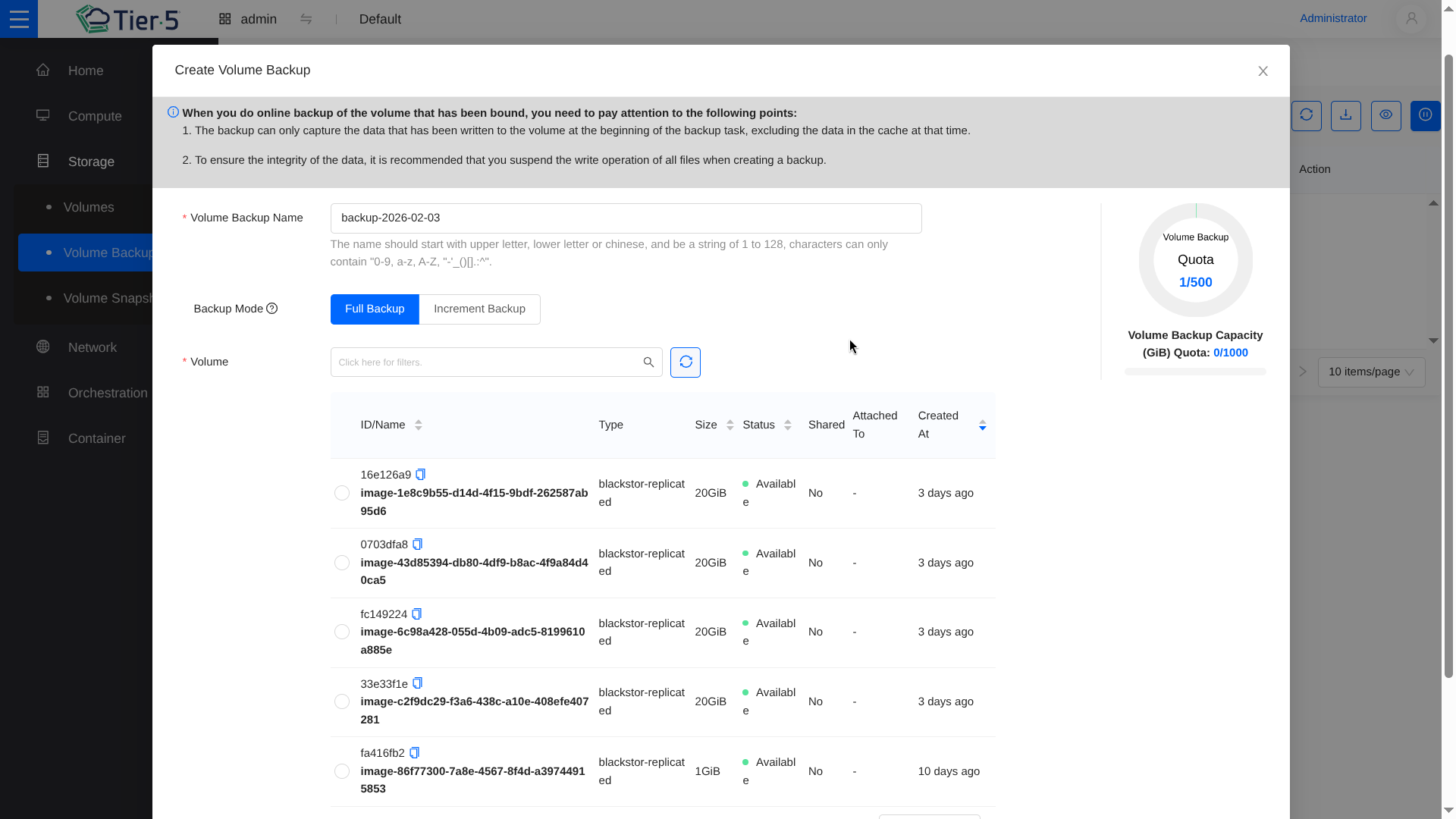
Volume Backups
Backups allow you to store volume data off-site or on minimal cost storage.
NFS Backups Only
Currently, Tier5 supports only NFS backups which must be configured as an extra service. Please contact the Tier5 support team to enable this feature for your tenant.
Orchestration (Heat)
Heat allows you to deploy complex infrastructure defined in templates (Infrastructure as Code).
Stacks
A "Stack" is a running instance of a template.
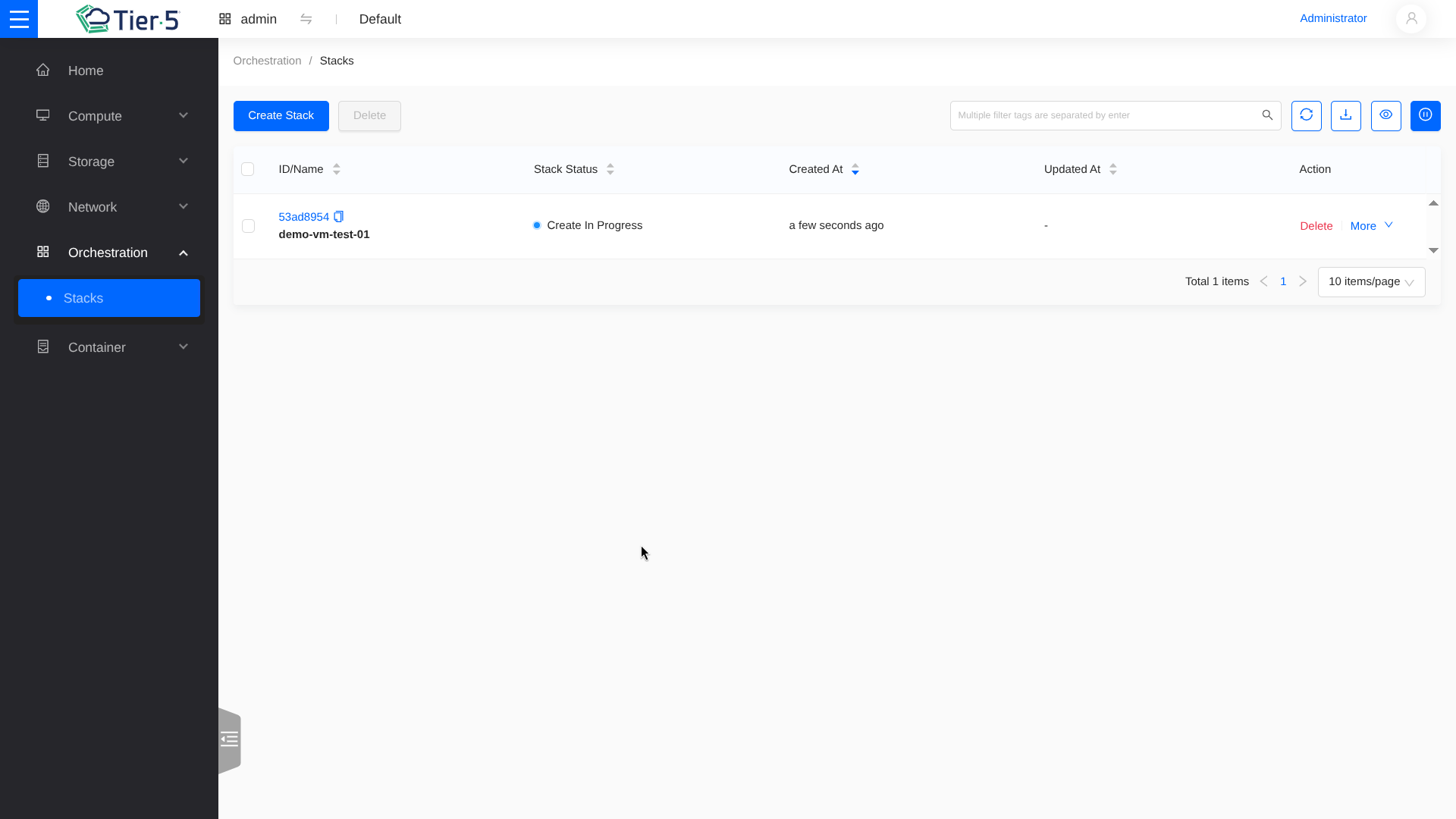
- Launch Stack:
- Upload a HOT (Heat Orchestration Template) or AWS CloudFormation template.
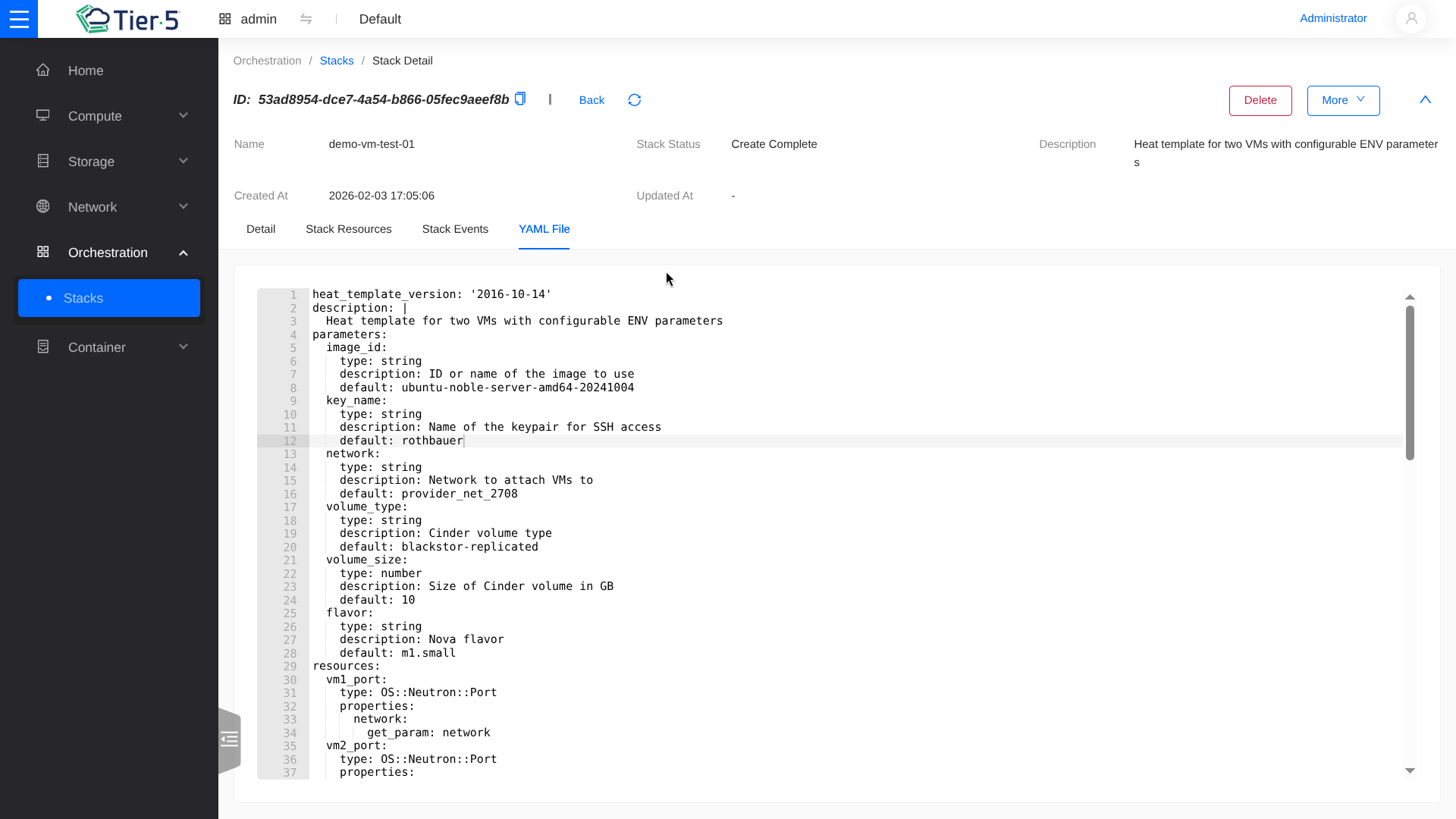
- Upload a HOT (Heat Orchestration Template) or AWS CloudFormation template.
- Monitor Events:
- Watch the deployment log to ensure all resources (networks, instances, LBs) are created successfully.
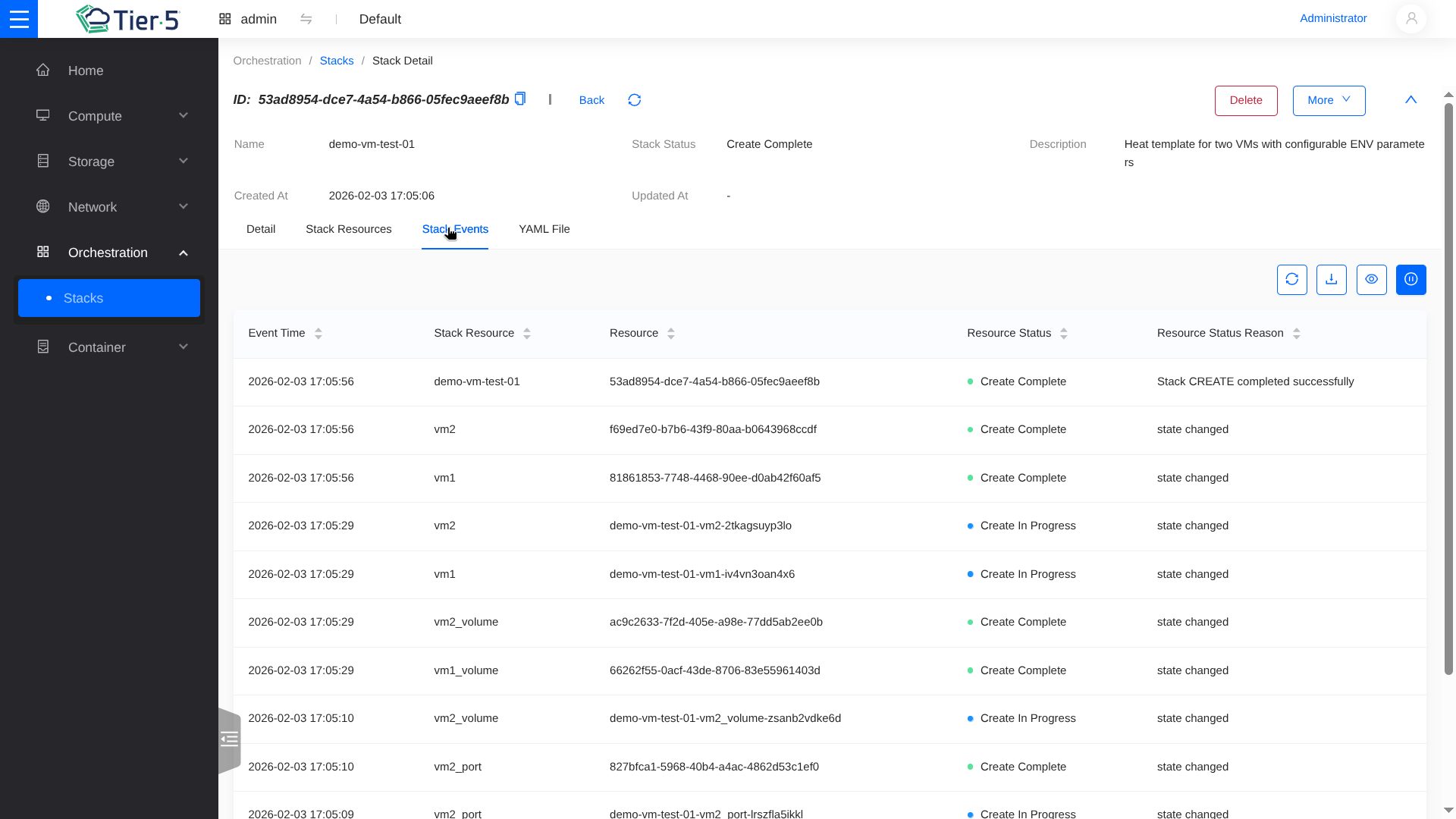
- Watch the deployment log to ensure all resources (networks, instances, LBs) are created successfully.
- Topology:
- Visualize the resources in your stack.
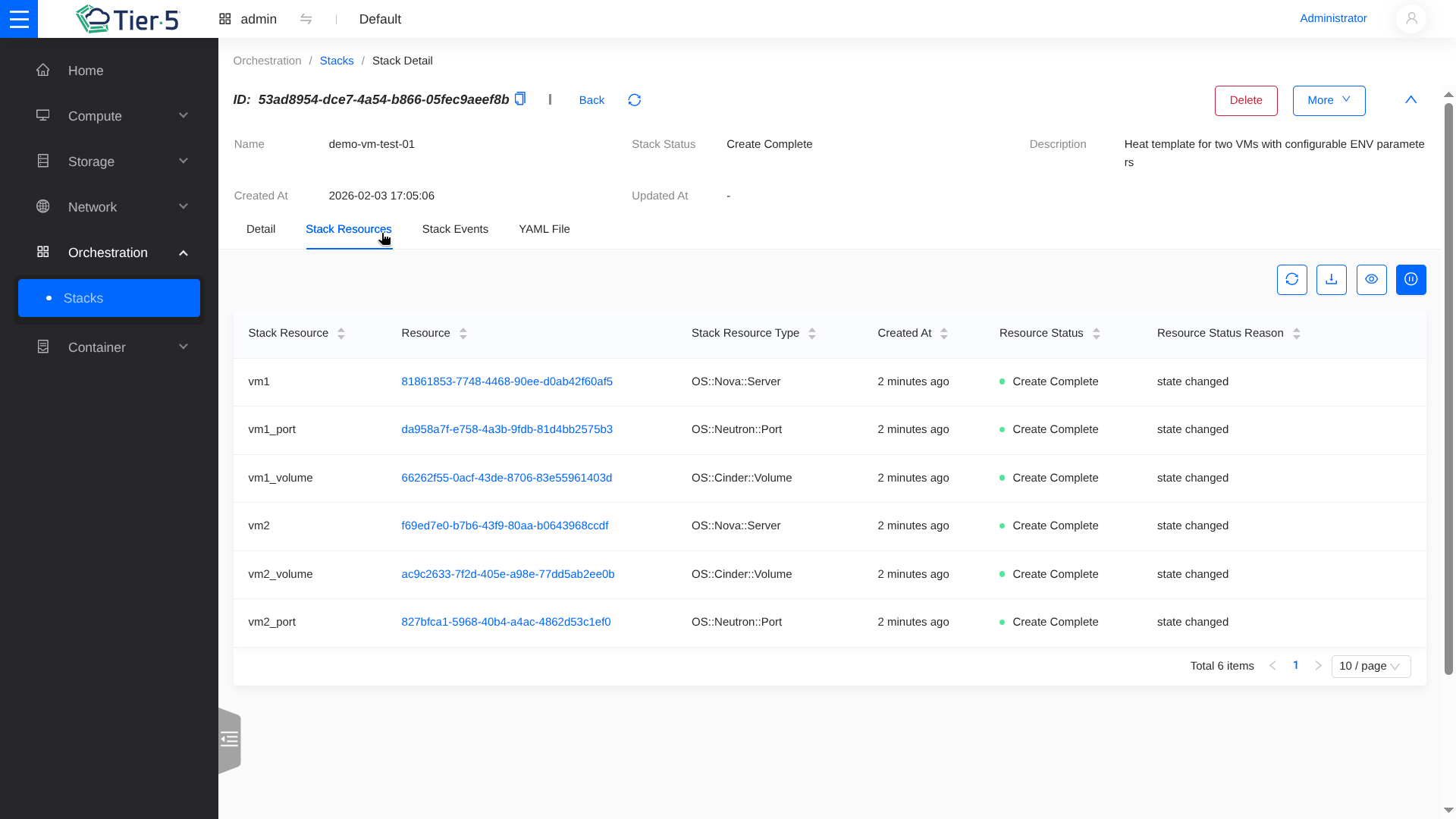
- Visualize the resources in your stack.